Every day, IT teams move between spreadsheets, dashboards, tickets, and emails to answer simple questions:
Which apps are underused?
Which contracts are coming up for renewal?
Who owns this app?
Did this offboarding workflow finish?
What changed in our SaaS stack last week?
That work takes time because the context lives in different places.
Torii’s hosted Model Context Protocol (MCP) server gives AI assistants a secure way to access your Torii data directly. Connect tools like Claude, ChatGPT, Cursor, and other MCP-compatible clients to Torii, and your assistant can query apps, users, contracts, workflows, audit logs, transactions, and more.
The best part: Torii MCP uses your existing Torii account permissions. Your assistant can only access the data and actions available to you.
How it Works
MCP is an open standard that lets AI tools connect to external systems through a shared interface. Instead of building one-off integrations for every AI tool, MCP gives compatible assistants a common way to talk to systems like Torii.
For Torii users, that means SaaS insights that once required the UI, manual reporting, or custom API work can now be surfaced directly in the AI tools your team already uses.
With Torii MCP, your assistant can help you access information like:
- User details
- Contract details
- Audit log history
- Application details
- Workflow activity
- Transactions
- SaaS costs
- Renewal data
- App ownership
- And more
Depending on your permissions, your assistant may also be able to take supported actions in Torii, such as searching apps, matching app records, creating contracts, updating users, or running workflows.
Hosted MCP, No Local Setup Required
Torii’s MCP server is now hosted, so you can connect your AI assistant directly to Torii without installing packages, running a local server, or managing API keys.
Connect your MCP-compatible client to Torii’s hosted MCP server:
https://api.toriihq.com/mcpFrom there, sign in with your Torii account and approve the connection. Torii uses OAuth and your existing Torii role permissions, so your assistant only gets the access you already have inside Torii.
Torii’s hosted MCP server can work with AI clients that support remote MCP servers with OAuth, including tools like Claude, ChatGPT, Claude Code, Cursor, Windsurf, Zed, Cline, Continue, and custom apps built with official MCP SDKs.
Torii MCP in Action
Below, see how a few prompts reveal offboarding status, ownership gaps, and replacement recommendations in seconds.
With just a few prompts in Claude, the user learns that:
- Six employees are currently in an offboarding workflow, and only one — Melba Donnelly — has not been deleted yet.
- Melba is still the app owner for Box.
- Claude can pull a list of active Box users, analyze usage, and suggest four candidates to take over ownership.
That is a simple example, but it shows the larger value: IT teams can move from question to answer without manually checking multiple screens, exporting data, or building a report first.
What You Can Ask
Once connected, your AI assistant can help answer questions like:
- Which apps have more than 100 users?
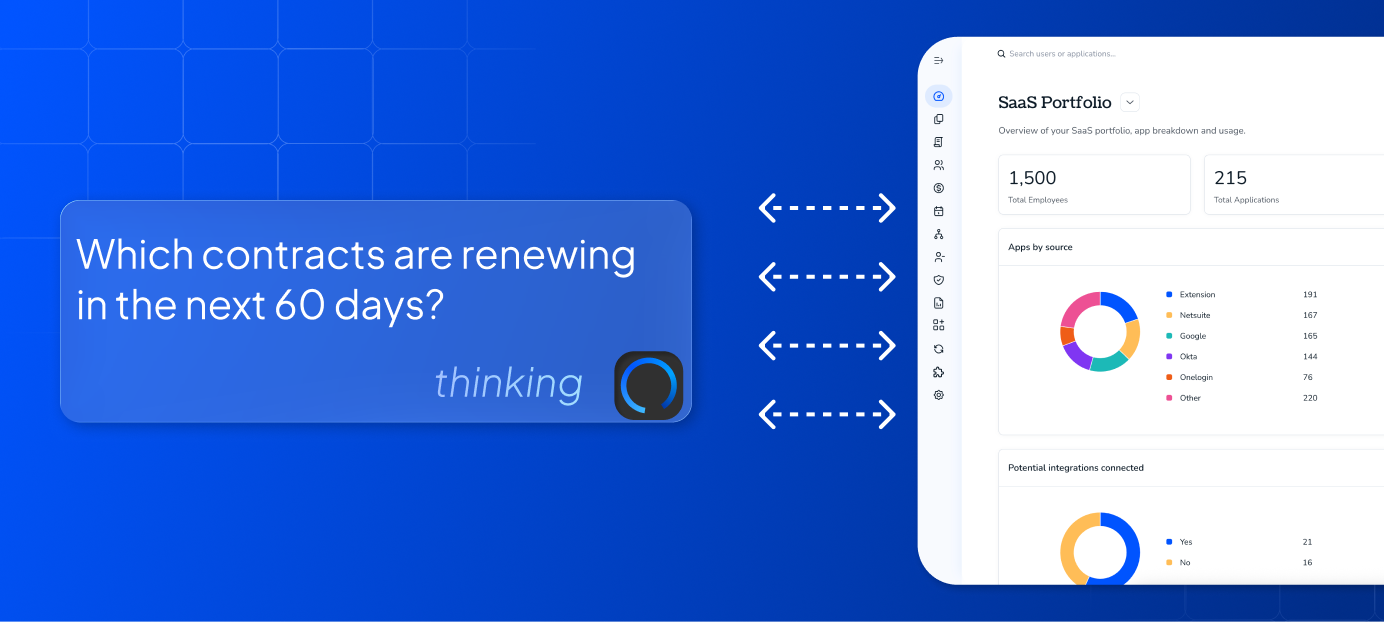
- Which contracts are renewing in the next 60 days?
- Which apps have the most unused licenses?
- Who owns this app?
- Which users have access to this app?
- What workflows ran in the last seven days?
- Which apps were added last month?
- What changed in our SaaS stack this week?
You can also use Torii MCP to dig deeper. For example, you might ask your assistant to find apps with high spend and low usage, identify contracts that need attention, or review recent workflow activity before a meeting.
Why It Matters
AI is only useful when it has the right context.
For SaaS management, that context lives in Torii: your apps, users, contracts, costs, workflows, ownership data, and audit history. Torii MCP brings that context into the AI tools your team already uses, so you can ask better questions and get faster answers.
That helps IT, procurement, finance, security, and operations teams:
- Reduce manual reporting
- Find SaaS risks faster
- Spot cost-saving opportunities
- Understand ownership and access
- Review workflow activity
- Prepare for renewals
- Make decisions with fresher data
Instead of asking your team to jump between systems, Torii MCP lets them start with a question and move straight toward the answer.
How to Get Started
Ready to connect your AI assistant to Torii?
Use Torii’s hosted MCP server:
https://api.toriihq.com/mcpFor step-by-step setup instructions, see the support guide: Connecting AI Assistants to Torii with MCP.
Want to learn more about the standard behind it? Read the Model Context Protocol specifications.
Torii MCP helps your team bring live SaaS context into the AI tools they already use, so they can move faster, reduce manual work, and manage software with more confidence.
Prefer a Local MCP Setup?
Torii’s hosted MCP server is the recommended setup for most users because it does not require local installation, API key management, or running your own server.
For teams that prefer a local setup, Torii also offers a local MCP server package that can run on your machine and connect to Torii through your API key.
Install the package:
npm install @toriihq/torii-mcpYou’ll need:
- A Torii API key
- Node.js
- Yarn package manager
A local setup may be useful if your team wants more control over how the MCP server runs, needs to test MCP behavior in a development environment, or is connecting through a client that does not support hosted remote MCP servers yet.
For most users, we recommend starting with the hosted MCP server:
For local setup instructions, visit Torii’s npm repository or contact your Torii Customer Support Representative.