

Introducing the Torii CLI
 John Baker
•
Mar 17, 2026
•
4 min read
John Baker
•
Mar 17, 2026
•
4 min read
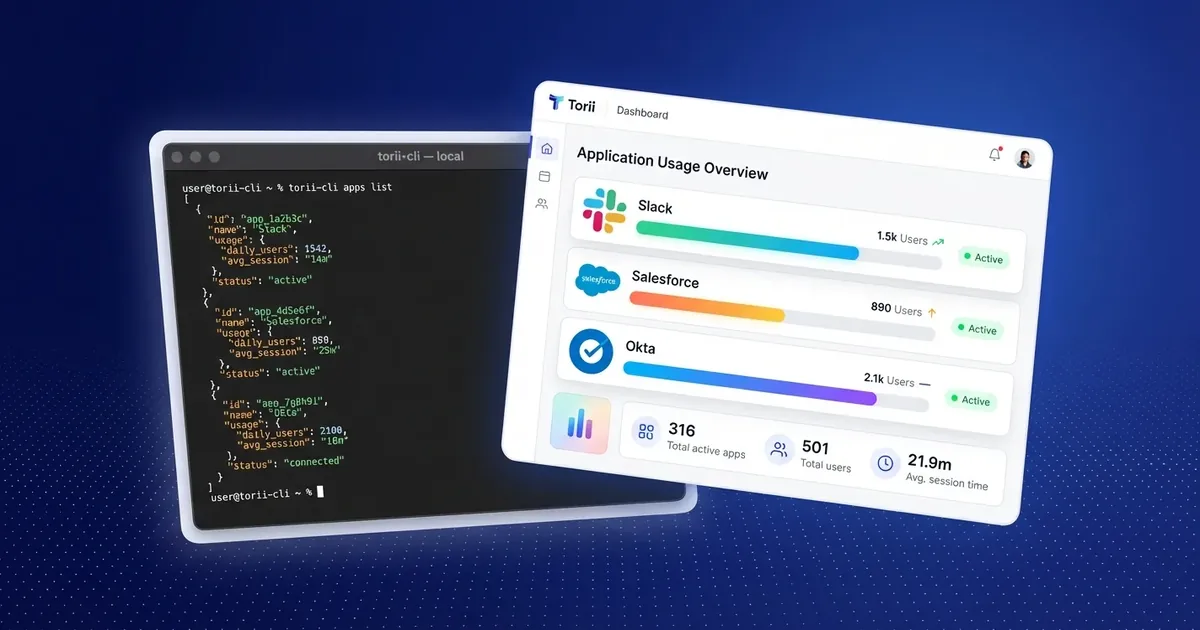
Introducing the Torii CLI: an OpenAPI-driven command line tool to explore the Torii API, run calls, and pipe SaaS data into scripts and AI agents.
Ask about this article
Opens Claude in a new tab to answer, using this article as the source.
Your SaaS data shouldn't live behind a dashboard you have to click through every time you need an answer. With the Torii CLI, it doesn't have to.
The Torii CLI is an OpenAPI-driven command line interface that lets you explore the Torii API, inspect schemas, and run API calls directly from your terminal. Every command is auto-generated from the live OpenAPI spec, so it stays in sync with the latest API capabilities without manual updates.
If you're writing automation scripts, building data pipelines, or connecting Torii to AI agents, this is your starting point.
Why a CLI?
Point-and-click interfaces work for exploring. But when you need to pull license data into a report, trigger a workflow from a script, or pipe SaaS usage stats into another tool, a CLI is faster and more composable. Every response comes back as structured JSON, so it works out of the box with jq, shell scripts, and automation frameworks.
The Torii CLI is built for:
- Automation scripts — schedule recurring data pulls or trigger actions on a cron
- Data extraction pipelines — export application, user, and contract data for analysis
- AI and agent integrations — feed Torii data into LLMs, Claude Code, or custom agents
- Interactive exploration — browse available endpoints and test calls before writing code
Getting Started
Install globally via npm, or run it directly with npx if you just want to try it out.
# Install globally
npm install -g torii-cli

# Or run without installing
npx torii-cli discovery
Before running commands, set your API key as an environment variable:
export TORII_API_KEY="your-api-key"That's it. You're ready to query your Torii instance from the command line.
How It Works
The CLI dynamically fetches the OpenAPI specification from the Torii API. This means you don't need to memorize endpoints or check documentation every time the API changes. Run the discovery command to see every available operation:
# List all available API operations
torii-cli discovery
This returns a JSON list of every endpoint, generated directly from the spec. From there, you can run any operation. For example, to pull your top 10 applications:
# List your first 10 applications
torii-cli apps list --size 10
All responses are structured JSON, which makes it easy to pipe into other tools or parse in scripts.
Pairing Torii CLI with AI Agents
One of the most practical uses for the Torii CLI is connecting your SaaS data to AI-powered tools. Because the CLI returns structured JSON and supports the same operations as the API, it works well as a data source for LLMs and coding agents.
Here's what that looks like in practice. Below, a user asks Claude Code how many people in their company are using ChatGPT, Gemini, and Claude. Claude queries the Torii API to pull real usage data and return an answer in seconds.
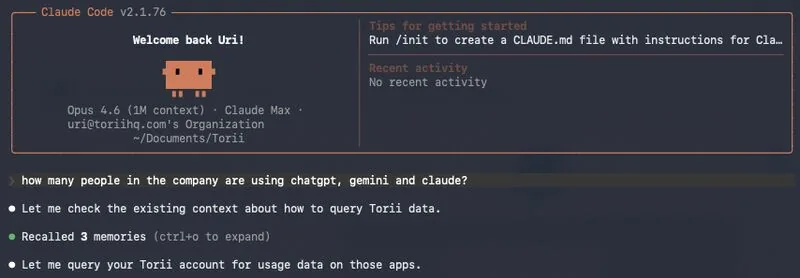
Instead of logging into a dashboard, filtering by app category, and exporting a spreadsheet, the user gets an answer through a natural language prompt. The CLI (and the broader Torii API) makes this kind of integration straightforward.
This pattern applies to more than just usage questions. You can build agents that flag expiring contracts, identify orphaned accounts, surface license optimization opportunities, or generate compliance reports, all powered by the same API the CLI uses.
What You Can Do With It
The CLI gives you access to the same data and actions available through the Torii platform. A few examples:
- Pull application inventory — list all discovered apps, filter by category, and export for audits
- Query user data — check who has access to what, identify inactive accounts, and track usage
- Monitor contracts and spend — surface renewal dates, license counts, and cost data
- Feed data into CI/CD or reporting tools — pipe JSON output into dashboards, Slack alerts, or ticketing systems
- Build custom automations — combine CLI calls with cron jobs, shell scripts, or orchestration tools
Get Started
The Torii CLI is available now on npm. Install it, set your API key, and start querying your SaaS data from the terminal.
For full documentation, visit the Torii Developer Docs.
Already a Torii customer? Reach out to your Customer Success representative to get your API key and start building.
Book a demo to see how Torii helps teams manage SaaS with automation, visibility, and developer-friendly tools.