

How to Add Users to Slack User Groups (3 Methods)
 John Baker
•
Aug 13, 2026
•
13 min read
•
Updated October 6, 2026
John Baker
•
Aug 13, 2026
•
13 min read
•
Updated October 6, 2026

Add people to Slack user groups three ways, from Slack's Directories page, with HR-driven Torii workflows, or through the API without wiping the member list.
Ask about this article
Opens Claude in a new tab to answer, using this article as the source.
A Slack handle like @designers only works when the right people are in it, because mentioning the group notifies every member at once. New hires and people who change departments rarely get added on day one. Until someone fixes it, @designers pings the wrong team.
Plenty of older guides still send admins to a “More > People” menu that no longer exists. Slack’s current help pages put Slack user groups under Home > Directories > User Groups instead.
There are three ways to add someone to a Slack group. A one-off change is quickest in Slack’s own directory, while Torii keeps membership in step with HR events like hires and department moves, and the Slack Web API suits scripted edits that resend the whole member list. Permissions come first, since the option never appears for people who lack them.
Who Can Manage Slack User Groups?
User groups are a paid-plan feature, available on Pro, Business+, and Enterprise, so a workspace on the free plan won’t offer them at all. On a paid plan, Slack’s help article on creating and editing user groups sets the default plainly: “Workspace Owners / Admins can create and edit workspace-level user groups by default, but they can make this feature available to all members”.
The Primary Owner, Workspace Owners, and Workspace Admins are the Slack user roles that hold the group controls out of the box (Slack’s guide to roles). Enterprise adds an Org Primary Owner, Org Owners, and Org Admins, and the Org Owners and Admins create and edit org-level groups.
The setting that opens group editing to members sits in the admin dashboard. On Pro and Business+, go to Admin > Workspace settings > Roles & permissions > Account types, click the three dots next to Create and edit user groups, and choose Edit permission (Slack’s admin dashboard guide). Enterprise admins find the same setting under Tools & settings, at the organization or the workspace level, and an org policy overrides whatever a workspace sets.
Some accounts can’t join a group whatever the permission setting says. The Slack Help Center is explicit that “Guests and people you work with in Slack Connect channels and DMs can’t be added to user groups in your organization”. Bots fail too, with an invalid_user error from the API.
A group is a mentionable handle rather than a channel, though the two connect. Each group can carry up to 100 default channels (Slack Help Center), and adding someone to the group adds them to those channels, never the reverse. Channel setup has its own guide, how to create a Slack channel.
- 1Admin
Open Admin from the Slack sidebar.
- 2Workspace settings
Pick the workspace whose groups you want to open up.
- 3Roles & permissions
The page that holds every account-type permission.
- 4Account types
Find the Create and edit user groups row.
- 5Edit permission
Click the three dots on that row, choose who can edit groups, and save.
Source: Slack Help Center, Manage user groups from the admin dashboard, checked October 2026.
| Role | Edits groups by default |
|---|---|
| Primary Owner | Yes |
| Workspace Owner | Yes |
| Workspace Admin | Yes |
| Member | Only if an admin opens it up |
| Org Owner or Org Admin (Enterprise) | Yes, for org-level groups |
Source: Slack Help Center, Create and edit user groups and Types of roles in Slack, checked October 2026.
Use Slack’s User Groups Directory
Slack gives anyone with permission a route from the Home tab, and admins get a second one through the admin dashboard (Slack Help Center). The person has to be in the workspace already, so send an invite first if they aren’t (how to invite someone to Slack).
| Panel element | What you do there |
|---|---|
| User Groups list | Select the group, for example @designers |
| Edit Members | Opens the group's current member list |
| Name search box | Type each person's name and pick them from the results |
| Save | Applies the changes to the group's members |
Source: Slack Help Center, Create and edit user groups, checked October 2026. Drawn from Slack's help steps, not captured from the app.
| Screen | Who can use it |
|---|---|
| Directories > User Groups | Owners, Admins, and members with permission |
| People > User groups (admin dashboard) | Owners and Admins |
| People > Groups (org level, dashboard only) | Org Owners and Org Admins on Enterprise |
Source: Slack Help Center, Create and edit user groups and Manage user groups from the admin dashboard, checked October 2026.
1. Open Home > Directories
Start from the Home tab in the Slack desktop app or a browser, then open Directories, which is where the User Groups list now lives.
2. Select User Groups and pick or create the group
Switch the Directories view to User Groups and click the group you want to change, such as @designers for the design team. If no group fits, click Create user group, give it a name and a handle, optionally pick default channels, then click Next, Add members, and Create Group.
3. Click Edit Members, add people, and Save
Click Edit Members, search for each person you want to add, and click Save once the list looks right. The same panel removes people too, so take anyone who has changed teams off the list before you save.
Retiring a group altogether works through its three-dot menu, where Deactivate group keeps the members on file but stops anyone from mentioning the handle.
4. Admins: edit members from the admin dashboard
Admins on Pro and Business+ can work from Admin > Workspace settings > People > User groups and click Edit User Groups. Hover over a group, click the people icon to change members (the gear icon edits its name, handle, and default channels), then Save. On Enterprise, the same page sits under Tools & settings > Workspace settings, once you open the workspace.
5. Enterprise: edit org-level groups under Organization settings
Org-level groups live at Tools & settings > Organization settings > People > Groups, where each group’s three-dot menu offers Add members and Remove members. These groups can be connected to workspaces and channels, but Slack manages them only from the dashboard and won’t combine them with groups synced from an identity provider.
Use Torii to Sync Slack User Groups With HR Events
Manual edits hold up until hiring picks up, and then every new designer or sales rep depends on someone remembering the right handle. Torii runs the change from HR data instead, through two Slack workflow actions called Add Slack user to User Groups and Remove Slack user from User Groups (Torii’s Slack integration).
1. Start a Torii proof of concept
Request Torii’s free two-week proof of concept, which sets up the Torii account your Slack workspace will connect to.
2. Connect Slack with Read and take action
In Torii, open the Integrations page, find the Slack tile, and click Connect. Choose the Read and take action permission type, because workflow actions need it, then pick your Slack plan type and finish the connection (Torii’s Slack setup guide).
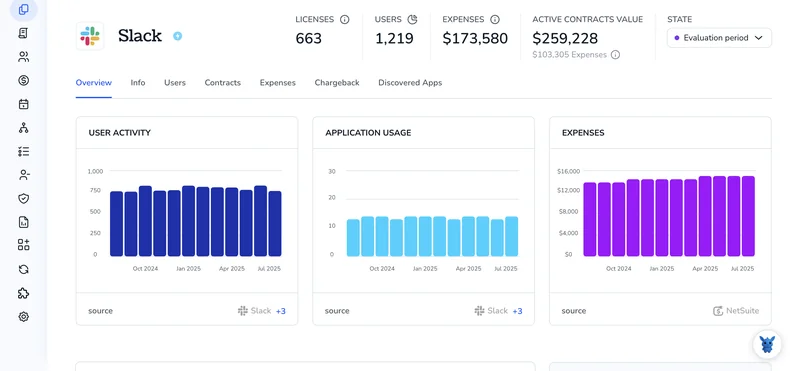
Managing users from Torii takes Business+ or Enterprise Grid, so the actions don’t run on Pro. On Grid, group changes run per workspace, so pick the Enterprise Grid: Workspace plan type. Torii then reads each user’s role, status, and a per-user Slack User Groups field, showing where someone sits before a workflow changes it.
3. Build a workflow with Add Slack user to User Groups
Torii’s employee onboarding example starts with a User meets criteria trigger that fires seven days before the start date recorded in HiBob. It creates the Slack user, then branches with If/Else by department. Under each branch, add Add Slack user to User Groups and pick the user group(s) for that department.
One If/Else action takes up to 20 branches and applies only one of them to each user. The workflow audit log shows which branch ran (Torii Help, Add Branching Logic to Workflows). Torii’s docs suggest routing channel access through the group’s default channels rather than a separate channel action.
Department moves need a second workflow on the User attribute changed trigger, running Remove Slack user from User Groups for the old team and then Add Slack user to User Groups for the new one. Torii doesn’t ship this mover flow as a template, so you build it from those documented pieces, next to the profile changes in how to update a Slack user.
Timing follows Torii’s sync schedule, which pulls integration data every 24 hours at 2:00 am GMT and checks workflow triggers every hour on the half-hour (Torii Help, Introduction to Workflows). An edit to someone’s HR record reaches their Slack groups only after that sync runs.
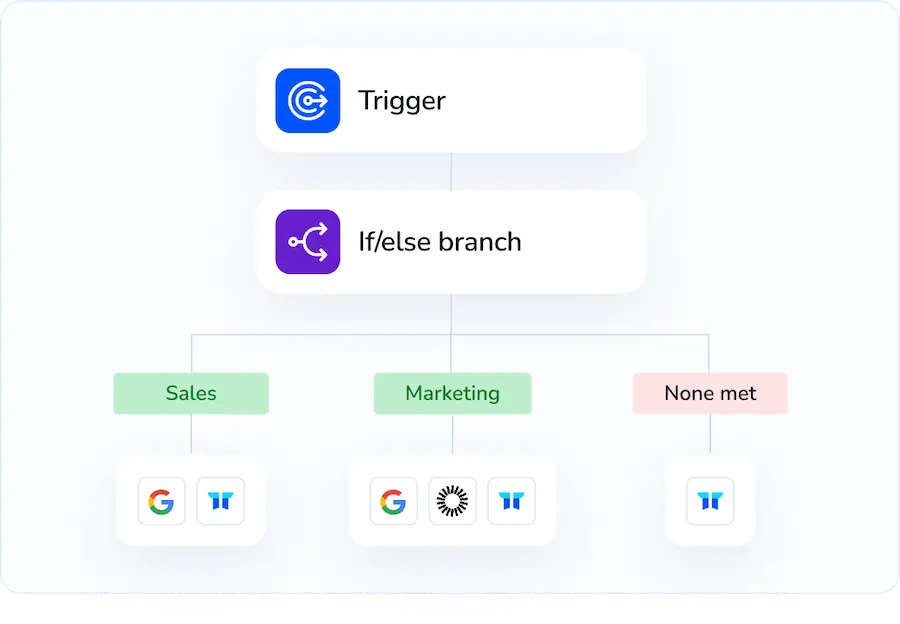
Torii puts new hires into their department's Slack user groups straight from HR data, using the same identity lifecycle workflows that run onboarding and offboarding. Book a demo to see it on your own Slack workspace.
Use the Slack Web API
The Web API method for this job is usergroups.users.update, and it has no way to add a single person on its own. Slack’s method reference states that “It replaces all users in a user group with the list of users provided in the users parameter.” A call that sends only the new person’s ID drops everyone else from the group.
- 1usergroups.
list Find the group ID by its handle.
- 2usergroups.
users. list Read the members already in the group.
- 3Append
Add the new user ID to that list.
- 4usergroups.
users. update Send the full list back in one call.
Source: Slack Developer Docs, usergroups.users.update, checked October 2026.
1. Get a token with usergroups:read and usergroups:write
Create a Slack app with both user group scopes and install it to the workspace. The read scope covers the two lookup calls, and only usergroups:write allows edits. Slack accepts a bot token only when group editing is open to everyone, so most workspaces need an Owner’s or Admin’s user token to avoid permission_denied.
2. Find the group ID with usergroups.list
Call usergroups.list and match your group by its handle or name to get an id that looks like S0604QSJC. Built-in groups carry an auto_type of admin or owner. Skip those.
3. Read the current members with usergroups.users.list
Pass that ID to usergroups.users.list, which returns the member IDs in a users array. A no_such_subteam error means the group ID is wrong.
4. Send the full list to usergroups.users.update
Append the new user ID to the array you just read and POST the whole list as a comma-separated users value, along with usergroup. Calls made with an org-level token need team_id too.
For developers
# Needs curl and jq. Token scopes: usergroups:read, usergroups:write.
export SLACK_TOKEN="xoxp-your-token"
GROUP_ID="S0604QSJC"      # from usergroups.list
NEW_USER="U0123456789"    # the person to add

# 1. List groups to find the ID by handle
curl -s -H "Authorization: Bearer $SLACK_TOKEN" \
  "https://slack.com/api/usergroups.list" \
  | jq '.usergroups[] | {id, handle, name, user_count}'

# 2. Read the current members as a comma-separated list
CURRENT=$(curl -s -H "Authorization: Bearer $SLACK_TOKEN" \
  "https://slack.com/api/usergroups.users.list?usergroup=$GROUP_ID" \
  | jq -r '.users | join(",")')

# 3. Send the full list: everyone already there, plus the new user
#    (no leading comma when the group starts out empty)
USERS="${CURRENT:+$CURRENT,}$NEW_USER"
curl -s -X POST "https://slack.com/api/usergroups.users.update" \
  -H "Authorization: Bearer $SLACK_TOKEN" \
  --data-urlencode "usergroup=$GROUP_ID" \
  --data-urlencode "users=$USERS" \
  | jq '{ok, error, user_count: .usergroup.user_count}'
5. Check the response and the common errors
A successful call returns the group object with its users and user_count for checking against what you sent. Both member methods are Tier 2, rated at 20+ calls per minute (Slack Developer Docs), so pace bulk jobs. The same reference warns that “You cannot use this method to remove all members from a user group. Instead, use the usergroups.disable method.”
| Error | What it means |
|---|---|
permission_denied |
The calling user or bot can’t edit groups under the workspace’s permission setting. Use an Owner’s or Admin’s user token, or open group editing to everyone |
plan_upgrade_required |
The workspace isn’t on a paid plan |
failed_for_some_users |
At least one user isn’t in the group’s workspace |
invalid_users |
The users value was empty or invalid |
missing_scope |
The token lacks usergroups:write |
Source: Slack Developer Docs, usergroups.users.update method reference, checked October 2026.
On Enterprise, only the workspace user groups go through this method. Groups synced from an identity provider go through SCIM, the standard identity providers use to sync users and groups, and in Slack’s SCIM API a PATCH adds a member without resending the list (Slack SCIM API reference).
Pro workspaces are limited to the directory and the Web API, because Torii’s group actions need Business+ or Enterprise Grid. On those plans, workspace groups can follow your HR system, while groups synced from an identity provider stay with SCIM. Someone leaving the company needs an offboarding flow instead, covered in removing users from Slack.
Frequently Asked Questions
Open the Home tab, go to Directories, select User Groups, and click the group you want. Click Edit Members, add the person by name, and click Save. You need permission to edit groups, and the person must already be a member of the workspace before Slack lets you add them.
Workspace Owners and Admins can create and edit workspace user groups by default, according to the Slack Help Center. They can open the feature to every member under Admin, Workspace settings, Roles & permissions, Account types, Create and edit user groups. On Enterprise, Org Owners and Org Admins manage org-level groups, and an org policy overrides the workspace setting.
No. User groups are a paid feature in Slack, available on the Pro, Business+, and Enterprise plans. If you are on a paid plan and still don't see the option to create a group, an admin has restricted the feature to Owners and Admins, so ask one of them to change the permission.
Slack handles this by deactivating the group. In Directories, User Groups, open the group's three-dot menu and choose Deactivate group. The group keeps its members, but nobody can mention the handle anymore. Through the API, Slack points to the usergroups.disable method, because usergroups.users.update can't remove every member from a group.
Yes. Torii's Slack integration includes the workflow actions Add Slack user to User Groups and Remove Slack user from User Groups, which can run when an HR system records a new hire or a department change. The actions need a Business+ or Enterprise Grid workspace and the Read and take action permission.
The method replaces the entire member list with the users you send, so a call containing only the new person's ID removes everyone else. Read the current members with usergroups.users.list first, add the new ID to that list, and send the full list back in the users parameter.