

How to Track and Manage Cursor Premium Seats (3 Methods)
 John Baker
•
Oct 26, 2026
•
14 min read
•
Updated October 26, 2026
John Baker
•
Oct 26, 2026
•
14 min read
•
Updated October 26, 2026

Manage Cursor premium seats on legacy Teams and The X Subscription. Switch seat types, flag idle seats, and reduce seats in Billing so the charge stops.
Ask about this article
Opens Claude in a new tab to answer, using this article as the source.
The word “Premium” now names two different Cursor seats, depending on when your team signed up. On a legacy Teams plan, Cursor’s Team Pricing docs list Premium at $120 per user a month. New Cursor teams now sign up for The X Subscription, a plan documented by SpaceXSI and managed at grok.com, and there Premium is the $30 entry seat. SpaceXSI’s announcement says the plan opened to new customers on 12 Oct 2026.
Managing Cursor premium seats means deciding who holds the expensive tier, then downgrading or removing the holders who don’t use it. Removing a person leaves the charge in place. Stopping it takes a separate Reduce seats step in Billing.
Cursor admins have three ways to do this, and only one, the Members page in Cursor’s own dashboard, makes all of these changes. Torii and the Cursor Admin API help you find which seats to change, and the API can remove members on Enterprise.
Which Cursor Seat Types Does Your Team Have?
The date your team was created decides which seat names you see and where you manage them. Teams created before 12 Oct 2026 keep Standard and Premium seats at cursor.com/dashboard, and can keep adding seats and changing seat types without switching plans. New teams start on The X Subscription, with Free, Premium, Super, and Ultra seats at grok.com/dashboard, the plan’s SpaceXSI-run dashboard.
On a legacy team, a Standard seat costs $40 per user a month and a Premium seat $120, with five times the Standard allowance (Cursor Docs, Team Pricing). Annual billing lowers those to $32 and $96, according to Cursor’s June 2026 pricing announcement, and a yearly plan can’t move to monthly partway through. Our roundup of Cursor contract management tools covers tracking those annual terms.
The X Subscription prices team seats at $30 for Premium, $100 for Super, and $200 for Ultra, per the same pricing page. Its $0 Free seat carries no team usage allowance and suits admins who manage Cursor without using it, the job the Unpaid Admin seat does on legacy teams.
Cursor’s legacy plans page maps legacy Standard to the new Premium and legacy Premium to Super, so the idle seat to hunt is legacy Premium on an older team and Super or Ultra on the new plan. Moving a legacy team to the new plan is optional but permanent. Cursor’s help center says Support can’t undo the switch.
| Seat | Plan | Price per user a month | Included usage | Managed at |
|---|---|---|---|---|
| Standard | Legacy Teams | $40 ($32 billed yearly) | The Standard allowance | cursor.com/dashboard |
| Premium | Legacy Teams | $120 ($96 billed yearly) | 5x the Standard allowance | cursor.com/dashboard |
| Unpaid Admin | Legacy Teams | $0 | None, admin access only | cursor.com/dashboard |
| Free | The X Subscription | $0 | No team allowance (personal or free allowance only) | grok.com/dashboard |
| Premium | The X Subscription | $30 | The base weekly usage pool | grok.com/dashboard |
| Super | The X Subscription | $100 | 3.75x the Premium pool | grok.com/dashboard |
| Ultra | The X Subscription | $200 | 12.5x the Premium pool | grok.com/dashboard |
Source: Cursor Docs, Team Pricing; Cursor blog, 1 Jun 2026 (yearly prices). Checked October 2026.
| Legacy Teams seat | X Subscription seat |
|---|---|
| Standard, $40 per user a month | Premium, $30 per user a month |
| Premium, $120 per user a month | Super, $100 per user a month |
Source: Cursor Docs, Legacy Cursor plans, checked October 2026.
Use the Members Page to Manage Cursor Premium Seats
Both seat systems follow nearly the same six steps, and all but the last happen on the Members page of your team’s dashboard. Step 6 is the billing change that actually lowers the invoice.
| Member | Seat Type | Usage |
|---|---|---|
| Alex Admin | Premium | ●●● |
| Sam Member | Premium ▾ Menu open: Standard, Premium | ●●● |
| Jo Member | Standard | ●●● |
Source: Cursor Docs, Members, checked October 2026. Illustration of the page layout, not a screenshot. Usage dots show relative activity, not real data.
1. Open Members in Your Team’s Dashboard
Legacy teams find seats under Members at cursor.com/dashboard, and X Subscription teams use Members at grok.com/dashboard. Per Cursor’s Members docs, Admins and Unpaid Admins can remove members, change roles, and manage billing, while a Member can invite people but can’t remove anyone. Seat tier is separate from role, so one team can mix tiers.
2. Review Who Holds Premium Against Their Usage
The Seat Type column sits beside each member’s usage in Members, and Usage Analytics holds the same per-member numbers. A Premium holder whose usage would fit inside a Standard allowance is the first downgrade candidate, and on The X Subscription the same check applies to Super and Ultra. Our guide to checking Cursor usage and costs shows where each member’s numbers sit.
3. Switch a Seat Type
Open the Seat Type column (the Seat menu next to each name), choose the new tier, and confirm, which X Subscription admins can do from the member context menu as well. Upgrades take effect immediately with a pro-rated charge. Downgrades wait for the end of the billing period, and picking the current tier again cancels a pending one.
4. Set the Seat for New Joiners
A dashboard invite lets an admin pick the tier before the person joins. On The X Subscription, choose Invite under Members, add the emails, then set a Role and a Seat before Send invites. Whoever accepts takes an unused seat, or Cursor buys a new pro-rated one.
People who arrive through SSO or SCIM get no tier choice. A Cursor staff member explained on the Cursor Forum: “They will still join as Standard, then you can bulk-upgrade them to Premium from the dashboard.” Cursor’s SCIM docs don’t mention seat tiers, so select those members on the Members page and change their seat type in one pass.
5. Remove a Member Who No Longer Needs a Seat
Legacy admins remove someone from the context menu next to their name, and X Subscription admins choose ⋯, then Remove from team, then Remove access. The person loses team access but keeps their Cursor account and its data. On a legacy team, a member who used any credits holds the seat until the cycle ends, and at least one Admin and one paid member must remain.
On The X Subscription, moving someone to the Free seat instead applies right away, but the paid seat still bills until step 6.
6. Reduce Seats in Billing to Stop the Charge
Removing a member only frees the seat for the next hire, and Cursor’s Team Pricing page spells out the fix: “Removing a member frees their seat for the next person who joins. Reduce seats in billing to stop paying for it at the end of the period.” On The X Subscription, open Billing & invoices, choose Edit seats from the plan menu, then Reduce seats. Legacy teams lower the seat count in Billing as well, though Cursor doesn’t document the exact menu path for the older plan.
- Upgrade a seat Takes effect now, with a pro-rated charge.
- Downgrade a seat Applies at the end of the billing period. Re-pick the current tier to cancel it.
- Move someone to Free Access changes now, but the paid seat stays on the plan.
- Remove a member Frees the seat for the next person. The plan keeps billing for it.
- Reduce seats in Billing The seat comes off the plan at the end of the period, and the charge stops.
Source: Cursor Docs, Members and Team Pricing; SpaceXSI Docs, Team plans. Checked October 2026.
Use Torii to Flag Idle Cursor Seats
A monthly seat review in the Cursor dashboard works until the person who runs it gets busy or leaves. Torii reads Cursor seats through its connector and flags the ones with no recent activity. The Cursor admin gets each flag and makes the change in Cursor.
1. Start a Free Two-Week Proof of Concept
Request Torii’s free two-week proof of concept to get the account Cursor will connect to, and have a Cursor admin ready to create a key.
2. Connect Cursor With an Admin API Key
In Torii, open Integrations, choose the Cursor tile, select Connect, enter a Cursor Admin API key, and select Connect again. A green checkbox appears once the sync completes. The Cursor integration help article lists what the connector reads, which is each user’s role, status, and license for one Cursor account. The data refreshes on Torii’s daily integration sync.
3. Find Idle Cursor Seats and Route Them to the Cursor Admin
Torii’s Licenses page lists Cursor licenses and marks a seat Inactive when its holder shows no SSO or browser-extension activity in the inactivity period. That period is 30 days by default, and the same page lists seats still assigned to past employees. Torii syncs a single Cursor license type, so the admin checks which flagged seats are Premium on Cursor’s Members page before acting.
A License not in use workflow, with its own inactivity period, sends a Slack or email notice or a Request approval to the Cursor admin. The admin then downgrades or removes the seat in Cursor with steps 3, 5, and 6 above, because the Cursor connector runs no actions of its own.
Usage here comes from SSO sign-ins and browser-extension visits, not time spent in the Cursor editor. If the extension is the only source and fewer than 10 users reported usage in the last 30 days, Torii shows no user activity for the app. Seats that were never used don’t fire the trigger, so review those on the Licenses page.
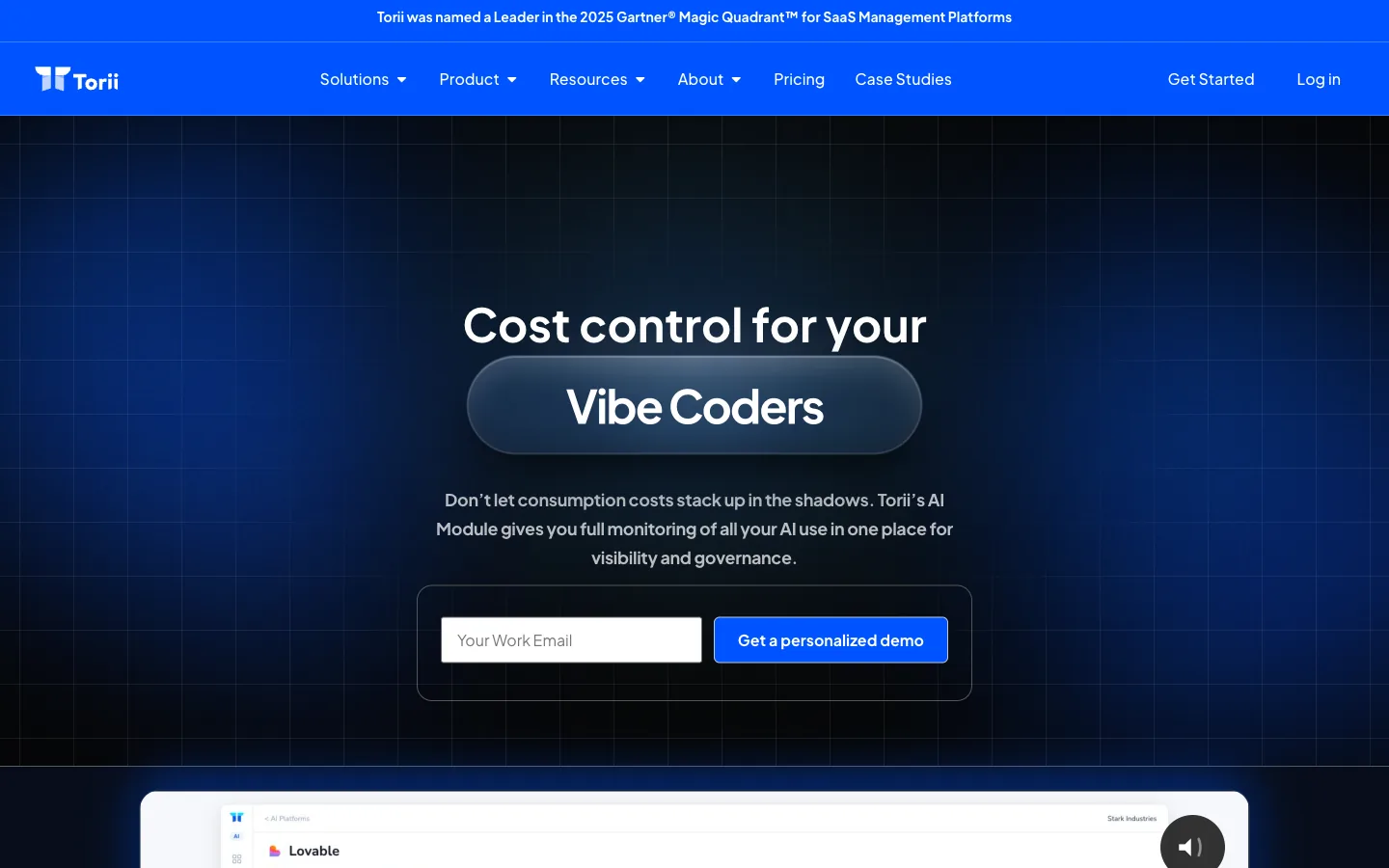
Cursor sits on the same Licenses page, under the same inactivity rule, as the rest of your SaaS stack, so a single review catches idle seats across all of them. The downgrade or removal still happens on Cursor's Members page. See how Torii flags unused licenses.
Use the Cursor Admin API to Find and Remove Idle Seats
The Cursor Admin API returns the team roster and daily activity, enough to script an idle-seat list, though it can’t read or change a seat type. Cursor’s docs don’t say whether X Subscription teams managed at grok.com get the Admin API.
1. Authenticate With an Admin API Key
Calls go to https://api.cursor.com with Basic Authentication, sending the key as the username. Any call that changes the team, removal included, needs a key with the admin:* scope.
2. List the Roster With /teams/members
A GET /teams/members call returns each member’s id, email, name, role, and isRemoved flag, with no seat field. A Cursor staff member on the Cursor Forum wrote that “it does seem like a gap that tier info (which member is on Standard vs Premium) isn’t even readable from the Admin API today.”
3. Find Idle Members With /teams/daily-usage-data
The paginated POST /teams/daily-usage-data call returns every member with an isActive flag for each day, 30 days at most per call (Cursor Admin API docs). Members with no active day, matched against the Seat Type column, make up your idle Premium list.
4. Remove Idle Members With /teams/remove-member
Removal through POST /teams/remove-member is Enterprise only and takes either an email or a userId, at up to 50 requests per minute per team under the same docs. The Enterprise gate is one of the differences covered in our guide to managing Cursor Business and Enterprise plans. The response’s hasBillingCycleUsage flag shows whether the member had usage this billing cycle, which per Cursor’s Members docs keeps the seat occupied until the cycle ends.
Every removal through the API still needs Reduce seats in the dashboard afterward (step 6 of the first method). No documented endpoint changes a seat type.
- 1/teams/members
Pull the roster: id, email, name, role. No seat field.
- 2/teams/daily-usage-data
Page through every member's isActive flag for each day.
- 3/teams/remove-member
Remove the idle member. Enterprise only.
- 4Reduce seats
Lower the seat count in the dashboard so the charge stops.
Source: Cursor Docs, Admin API, checked October 2026.
For developers
# Basic auth: the Admin API key is the username, the password stays blank.
KEY="YOUR_API_KEY"

# The window can't exceed 30 days per call. Dates are epoch milliseconds.
END=$(( $(date +%s) * 1000 ))
START=$(( END - 30 * 24 * 60 * 60 * 1000 ))

# Paginated daily usage returns every member, with isActive on each day.
page=1
: > usage.jsonl
while :; do
  resp=$(curl -s -X POST https://api.cursor.com/teams/daily-usage-data \
    -u "$KEY:" \
    -H "Content-Type: application/json" \
    -d "{\"startDate\": $START, \"endDate\": $END, \"page\": $page, \"pageSize\": 1000}")
  echo "$resp" | jq -c '.data[]' >> usage.jsonl
  [ "$(echo "$resp" | jq '.pagination.hasNextPage')" = "true" ] || break
  page=$(( page + 1 ))
done

# Members with no isActive true day in the window: check each one's
# Seat Type on the Members page before you act.
jq -rs 'group_by(.email)
  | map(select(all(.[]; .isActive != true)) | .[0].email)
  | .[]' usage.jsonl

# Enterprise only. Needs a key with the admin:* scope.
# Send email or userId, not both. Rate limited to 50 requests per minute per team.
curl -X POST https://api.cursor.com/teams/remove-member \
  -u "$KEY:" \
  -H "Content-Type: application/json" \
  -d '{ "email": "developer@company.com" }'
# The response's hasBillingCycleUsage tells you whether the seat stays
# occupied until the cycle ends. Then Reduce seats in the dashboard.
A small legacy team can get by on the Members page alone, checking the Seat Type column monthly and running Reduce seats after every removal. Enterprise teams that script offboarding can pull the idle list and remove members through the Admin API, though someone still lowers the seat count by hand. Torii fits companies already reviewing licenses across their SaaS stack, since Cursor joins that review while the change still happens in Cursor, and anyone comparing third-party trackers can start with our roundup of tools to track Cursor usage and spend.
Frequently Asked Questions
An admin opens Members in the team dashboard (cursor.com/dashboard for legacy teams, grok.com/dashboard on The X Subscription), picks the new tier from the Seat menu beside the person's name, and confirms. An upgrade takes effect at once, with a pro-rated charge. A downgrade waits until the billing period ends, and re-picking the current tier cancels it.
It depends on the plan. Cursor's Team Pricing docs list the legacy Teams Premium seat at $120 per user a month with five times the Standard allowance, or $96 billed yearly per Cursor's June 2026 pricing announcement. On The X Subscription, launched for new customers on 12 Oct 2026, Premium is the entry seat at $30 a month.
No. Removing a member frees the seat for the next person, but the seat stays on your plan. Per Cursor's Team Pricing docs, you reduce seats in billing to stop paying for it at the end of the period. Moving someone to the Free seat on The X Subscription works the same way.
No. The documented Admin API has no endpoint that changes a seat type, and /teams/members returns no seat field. You can find idle members with /teams/daily-usage-data and remove them with /teams/remove-member on Enterprise, then reduce seats in the dashboard.
Compare each member's usage with their Seat Type in Members, or pull daily isActive flags from the Admin API's /teams/daily-usage-data. Torii marks Cursor seats Inactive after 30 days, by default, with no SSO or browser-extension activity and routes them to the Cursor admin, who downgrades or removes the seat in Cursor.
They became legacy seats when The X Subscription launched on 12 Oct 2026. Teams created before then keep Standard and Premium and can still add seats and change seat types. Cursor maps legacy Standard to the new Premium seat and legacy Premium to the Super seat, and switching plans is permanent.