

How to Track Entra ID Licenses (3 Methods)
 John Baker
•
Oct 28, 2026
•
14 min read
•
Updated October 28, 2026
John Baker
•
Oct 28, 2026
•
14 min read
•
Updated October 28, 2026

Track Entra ID licenses three ways. Count P1 and P2 seats in the admin centers, find idle holders in Torii, and pull unassigned seats from Microsoft Graph.
Ask about this article
Opens Claude in a new tab to answer, using this article as the source.
Ask an IT admin how many Entra ID licenses the company owns, who holds them, and which ones sit idle, and the answer now lives in two portals. Since 1 September 2024, the Microsoft Entra admin center and the Azure portal no longer support license assignment in their interfaces, and assignment moved to the Microsoft 365 admin center (Microsoft Entra docs). The same notice says the change touches the UI only, so API and PowerShell access keep working.
Entra ID licenses (formerly Azure AD licenses) can be counted and audited in the Entra and Microsoft 365 admin centers, matched to each holder’s usage in Torii, or pulled in bulk from Microsoft Graph, and each route fits a different team.
Which Licenses Does Entra ID Count?
Two different things get called Microsoft Entra licenses, and mixing them up is the quickest way to a wrong count. The first is the Entra tiers themselves (Entra ID P1, P2, and the Suite), which Entra’s License usage page counts. The second is every Microsoft 365 SKU (the product code Microsoft uses for each license) that Entra hands to users, either directly or through a group.
Group-based licensing means a license is attached to a group rather than a person, and Entra gives it to each first-level member, so adding someone to a licensed group assigns that group’s licenses automatically. Removing them takes those licenses away. It works for security, mail-enabled, and Microsoft 365 groups, but nested groups aren’t supported, so a member of a subgroup gets nothing.
Group seats are harder to count because the license follows the group, so the people holding it aren’t named where the seat is listed. Failures stay quiet too, as Microsoft’s group licensing guide warns: “Unlike direct user license assignment, where errors appear immediately, group-based licensing records the failure on the user object and surfaces it later in the admin portal.”
Seats held by people who rarely sign in are the usual place to look for savings, which our guide to unused SaaS licenses covers in more depth.
| Microsoft Entra admin center | Microsoft 365 admin center |
|---|---|
| Counts P1, P2, and Suite seats on the License usage page | Lists who holds each product under Billing > Licenses |
| Flags groups with licensing errors under Billing > Licenses > Overview | Assigns and unassigns licenses for users and groups |
| Shows each user's Last interactive sign-in time under Entra ID > Users | Lists failed assignments on each product's Errors & issues tab |
Source: Microsoft Entra docs (licensing change notice) and Microsoft Learn (license usage insights; group licenses), checked October 2026.
| License type | Where you count it | Where you change it |
|---|---|---|
| Entra ID P1, P2, Suite | Entra admin center > Billing > Licenses (License usage page) | Microsoft 365 admin center |
| Microsoft 365 SKU, direct | Microsoft 365 admin center > Billing > Licenses, listed by user | Microsoft 365 admin center |
| Microsoft 365 SKU, via group | Microsoft 365 admin center > Billing > Licenses, listed by group name | Group membership, or the Microsoft 365 admin center |
Source: Microsoft Learn, Microsoft Entra licensing and group licenses, checked October 2026.
Use the Entra and Microsoft 365 Admin Centers
Before step 1, check access: viewing the counts takes a paid Entra license and at least the Reports Reader role, and changing assignments takes at least License Administrator or User Administrator (or Groups Administrator for group licensing).
1. Open Billing > Licenses in the Microsoft Entra admin center
In the Microsoft Entra admin center, go to Billing > Licenses to open the License usage page, which gives your Entra ID license count for P1, P2, and Suite (Microsoft Learn, license usage insights).
2. Read Licenses Used, Licenses Not Used, and Usage Spike
Each tier shows the month’s entitlement, Licenses Used, Licenses Not Used, and a Usage Spike indicator that flags use above the entitled count. P1’s headline metric is Conditional Access users (the people your Conditional Access policies cover) and P2’s is Risk-based Conditional Access users, while a Monthly usage patterns panel tracks six months of active and guest users. Microsoft Learn puts the data lag at up to three days, and Microsoft documents no over-use alert on either page, so the Usage Spike indicator, which updates monthly, is the closest thing to one.
3. Check Billing > Licenses > Overview for group licensing errors
When a group has licensing errors, Billing > Licenses > Overview shows an information box, and selecting it lists the affected groups. Open one of those groups and its notification names the users who didn’t get a license.
4. Add the Last interactive sign-in time column under Entra ID > Users
Microsoft is plain that no ready-made report exists here: “While there isn’t a built-in report for inactive user accounts, you can use the last sign-in date and time to determine if a user account is inactive” (Microsoft Learn, inactive user accounts). Under Entra ID > Users, choose Manage view > Edit columns > + Add column, pick Last interactive sign-in time, and save.
Then use Add filter with the <= operator and your cutoff date to list holders who haven’t signed in since. The same page says the value can take up to 24 hours to update.
5. Open Billing > Licenses in the Microsoft 365 admin center and select a product
Switch to the Microsoft 365 admin center, open Billing > Licenses, and select a product to see who holds it. Direct assignments list each user, while group assignments show only the group name, with members under Teams & groups > Active teams & groups. Read the totals with care, because “The Licenses page might show an aggregate total of licenses for all subscriptions for the same product name” (Microsoft Learn, assign licenses).
For one person’s seats, go to Users > Active users, select the user, and open Licenses and Apps.
6. Fix errors and reclaim seats from the Errors & issues tab
Each product page has an Errors & issues tab listing users who didn’t get a license and why, such as no available licenses, conflicting plans, or an invalid usage location. Fix the cause, then select Reprocess. After a group assignment, Microsoft’s group licensing docs say the lists of users who did and didn’t get a license show 999 users at a time, so scroll to load the rest. The removal clicks are in our guide to unassigning Microsoft 365 licenses.
| Field | What it tells you |
|---|---|
| Entitlement | How many P1, P2, or Suite licenses you own this month |
| Licenses Used | Seats counted against the tier's headline metric (Conditional Access users for P1, Risk-based Conditional Access users for P2) |
| Licenses Not Used | Owned seats with no matching usage |
| Usage Spike | Use above the entitled count, updated monthly |
| Monthly usage patterns | Six months of active users against guest users |
Source: Microsoft Learn, license usage insights, checked October 2026. Illustration of the page's fields, not a screenshot.
- Entra License usage page P1, P2, and Suite seats owned against used. Data can trail by up to three days.
- Entra Billing > Licenses > Overview Groups whose members hit a licensing error.
- Entra ID > Users Last interactive sign-in per user, up to 24 hours behind.
- Microsoft 365 Billing > Licenses Holders per product. Totals can merge subscriptions that share a product name.
- Microsoft 365 Active users > Licenses and Apps Every license one person holds.
Source: Microsoft Learn (license usage insights; inactive user accounts; assign licenses to users), checked October 2026.
Use Torii to See Who Holds Each Entra ID License
The admin centers split the job: license holders sit on the Microsoft 365 Licenses page, listed by group when seats come through a group, while sign-in dates sit on a separate Entra Users view, so matching the two is manual. Torii’s Microsoft Entra ID connector reads license assignments along with usage drawn from sign-in logs, so Entra ID license management happens next to the people who hold each seat.
1. Sign up for Torii
Request Torii’s free two-week proof of concept to get a workspace you can connect your Microsoft tenant to.
2. Connect Microsoft Entra ID
Torii offers two ways to connect a Microsoft Entra ID tenant. The Admin user option signs in through OAuth with Read or Read and Take action permissions and needs one Entra ID P1 license on the connecting user to pull sign-in data. App Registration uses a tenant ID, client ID, client secret, and admin consent instead. Torii’s App Registration guide says the connector syncs users, licenses, and usage, and that method also lets you connect several Entra ID accounts.
3. View Microsoft Entra ID in Torii
Open Microsoft Entra ID in Torii and its Licenses page lists every license in the tenant, from Entra ID P1 and P2 to each Microsoft 365 SKU, with the total split into Active, Inactive, and Unassigned. Inactive means assigned to someone who hasn’t engaged within the inactivity period, which defaults to 30 days org-wide (Torii Help, Introduction to Licenses). Torii’s Entra ID connector pulls 30 days of usage history on its first sync.
Click the Inactive number to see each holder and the reason, such as a license still assigned to a past employee. On the app’s Users list, filtering by Department, Cost Center, Groups, User Status, or Deleted Date (all fields the connector reads from Entra) shows which teams carry the idle seats.
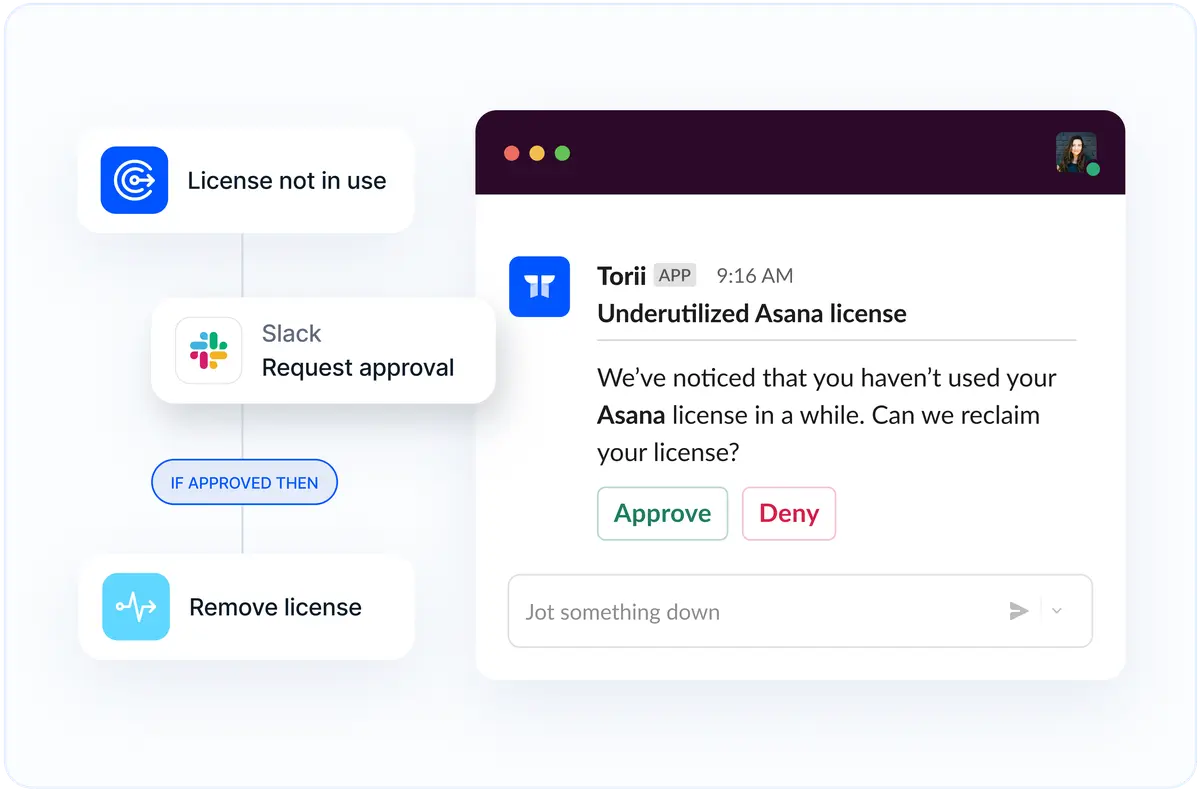
Torii has no direct assign or unassign license action for Entra ID, so reclaiming a seat depends on how it was assigned. Where the tenant licenses through groups, a workflow on the “License not in use” trigger can remove the user from the licensing group with the “Remove Microsoft Entra ID member from groups” action, after an approval step.
Entra then drops the license that group gave the user, typically within minutes according to Microsoft Learn’s Manage licenses training module, and a directly assigned license stays where it is. Torii lists only Microsoft 365 and Security groups (Torii Help, Microsoft Entra ID integration), and the action takes up to 10 groups at once (Torii Help, Selecting Groups).
Directly assigned Microsoft 365 seats go through Torii’s Microsoft 365 integration, which has an “Unassign Microsoft 365 license” action. For leavers, “Disable Microsoft Entra ID user” stops sign-in, and unassigning the license is a separate change. Our guide to disabling a Microsoft 365 user covers the offboarding side.
Torii splits every Entra ID license into Active, Inactive, and Unassigned, with a 30-day default inactivity period, and removes idle holders from licensing groups only after an approval step. See how Torii handles license optimization.
Use the Microsoft Graph API
Microsoft Graph returns the same numbers the portals do, and it suits monthly snapshots plus joins the portals can’t make, such as matching each SKU’s holders against their last sign-in.
1. Grant a read permission
Give your app or account LicenseAssignment.Read.All, the least privileged permission for reading subscriptions, or use the Global Reader or Directory Readers role for delegated calls. Listing users with an app-only token takes User.Read.All as well.
2. Pull tenant totals with GET /subscribedSkus
Call GET /v1.0/subscribedSkus (or Get-MgSubscribedSku in PowerShell) and compare consumedUnits, the licenses that have been assigned, with prepaidUnits.enabled for each SKU. The sample response in Microsoft’s List subscribedSkus reference shows 25 enabled and 14 consumed for ENTERPRISEPREMIUM, so unassigned seats are enabled minus consumed. Microsoft’s product names reference lists Entra ID P1 as AAD_PREMIUM (P2 is AAD_PREMIUM_P2), and the endpoint supports $select but not $filter.
| Field | Sample value |
|---|---|
| sku | ENTERPRISE |
| prepaidUnits. | 25 |
| consumed | 14 |
| Unassigned (our math) | 25 minus 14 = 11 |
Source: Microsoft Graph docs, List subscribedSkus (sample response), checked October 2026. The unassigned figure is our arithmetic, not a Microsoft field.
3. List who holds a SKU
Filter /users on assignedLicenses/any with the SKU’s skuId to list every holder of that license. Results arrive in pages of 100 by default and 999 at most, per Microsoft’s List users reference.
4. Split direct from group assignments and find errors
The assignedLicenses property doesn’t say how a seat arrived, so select licenseAssignmentStates too. Its assignedByGroup value is null for a direct seat and holds a group ID for an inherited one, and state reads Active, ActiveWithError, Disabled, or Error. To find problem groups, filter /groups on hasMembersWithLicenseErrors eq true, and skip /users/{id}/licenseDetails in app-only scripts because it doesn’t support application permissions.
5. Join sign-in activity to find idle holders
Selecting signInActivity requires an Entra ID P1 or P2 license and AuditLog.Read.All, caps pages at 500, and can’t be combined with other filters in the same call. Pull SKU holders and sign-in times separately, then join them on user ID to list holders who haven’t signed in since your cutoff.
For developers
# Tenant totals per SKU, with unassigned seats calculated
Connect-MgGraph -Scopes "LicenseAssignment.Read.All"
Get-MgSubscribedSku |
  Select-Object SkuPartNumber, ConsumedUnits,
    @{Name = "Enabled";    Expression = { $_.PrepaidUnits.Enabled }},
    @{Name = "Unassigned"; Expression = { $_.PrepaidUnits.Enabled - $_.ConsumedUnits }}
# Holders of one SKU (replace {skuId} with the GUID from subscribedSkus)
GET https://graph.microsoft.com/v1.0/users?$select=id,mail,assignedLicenses&$filter=assignedLicenses/any(u:u/skuId eq {skuId})

# Direct vs group-inherited seats, safe for app-only tokens
GET https://graph.microsoft.com/v1.0/users?$select=id,mail,assignedLicenses,licenseAssignmentStates

# Groups with members whose licenses failed
GET https://graph.microsoft.com/v1.0/groups?$filter=hasMembersWithLicenseErrors+eq+true&$select=id,displayName

# Last sign-in per user (needs AuditLog.Read.All and Entra ID P1 or P2); join on id
GET https://graph.microsoft.com/v1.0/users?$select=id,mail,signInActivity
For a one-off count before a renewal or an audit, the admin centers are enough. IT and finance teams that want holders, usage, and cost center in one view, plus an approval-gated reclaim workflow, should use Torii, while an engineering team that already runs a reporting pipeline should script the count against Graph.
Frequently Asked Questions
In the Microsoft Entra admin center, go to Billing > Licenses to open the License usage page, which shows how many Entra ID P1, P2, and Suite licenses you own and use. For Microsoft 365 SKUs, open Billing > Licenses in the Microsoft 365 admin center, or call the subscribedSkus endpoint in Microsoft Graph.
No. Since 1 September 2024, the Entra admin center and the Azure portal no longer support license assignment in their interfaces, and Microsoft moved user and group assignments to the Microsoft 365 admin center. Only the UI changed, so Microsoft Graph and PowerShell access keep working as before.
Add the Last interactive sign-in time column under Entra ID > Users and filter for dates before your cutoff, keeping in mind Microsoft notes the value can lag by up to 24 hours. Torii splits Entra ID licenses into Active, Inactive, and Unassigned, using its default 30-day inactivity period (Torii Help), and lists each inactive holder with a reason.
Group-based licensing attaches licenses to a group instead of a person, so a user gets the group's licenses automatically on joining and loses them on leaving. Security, mail-enabled, and Microsoft 365 groups all support it. Nested groups aren't supported, so only first-level members receive the license.
GET /v1.0/subscribedSkus returns each SKU in the tenant with consumedUnits, the number of licenses assigned, and prepaidUnits.enabled, the units enabled for the subscription. Subtracting consumed from enabled gives your unassigned seats. The least privileged permission is LicenseAssignment.Read.All, and the endpoint supports $select but not $filter.
In Torii, there's no direct unassign action for Entra ID licenses. Where your tenant licenses through groups, a Torii workflow can run Remove Microsoft Entra ID member from groups, and Entra then drops that group's license. Directly assigned Microsoft 365 seats go through the Unassign Microsoft 365 license action in Torii's Microsoft 365 integration.