3 Ways to Delete Groups in Google Workspace

Old Google Groups pile up in Google Workspace. Unused mailing lists, security groups, and access groups can clutter your directory and leave lingering permissions. Cleaning them out reduces risk, simplifies audits, and keeps Mail and Drive sharing straightforward.
We’ll show three safe ways to delete groups, the Admin console, Google Groups, and the Directory API, plus what deletion affects (email routing, archives, memberships) and how to verify impact before you remove anything.
Table of Contents
Use Google Workspace’s UI
Here, you’ll use the Google Admin console to delete a group. These steps match Google’s Admin Help for deleting groups in the UI.
Check your admin access
Make sure you’re signed in as a super admin or an admin with the Groups privilege that allows deleting groups. If you don’t see Groups in the Admin console, you likely need a higher role.
Open the Admin console
Go to admin.google.com and sign in with your admin account.
Go to Groups
- From the Admin console Home page, select Directory.
- Click Groups.
Find the group you want to delete
- Use search to find the group by name or email.
- Click the group to open its details.
Review impact before deleting
Take a minute to confirm what the group controls. Deleting a group removes its email address, membership, and any Google Groups archives. It also removes any access the group grants.
- Common places this matters:
- Drive folders or files shared to the group
- Google Sites shared to the group
- Calendar invitations sent to the group’s address
- App access, SSO, or security policies scoped to the group
Tip: On the group page, check Members and Settings to spot owners, aliases, and who might be affected.
Delete the group in the UI
- On the group’s details page, click Delete group.
- Read the confirmation message, then confirm the deletion.
What happens next:
- The group email stops working right away.
- Members lose any access that came from the group.
- Group conversations and archives are removed.
- You can’t undo this. If needed later, you’ll have to create a new group, then re-add members and permissions.
Clean up after deletion
- If the group granted access to Drive, Sites, or apps, replace that access with another group or direct shares.
- Update any docs or runbooks that referenced the old group address.
If you can’t delete the group
- You might not have the right admin privileges. Ask a super admin to delete it or adjust your role.
- If you sync groups from another directory with a tool like Google Cloud Directory Sync, delete the group in the source directory first. Otherwise it can reappear on the next sync.
- Dynamic and security groups delete the same way. If Delete group is missing, you likely lack permission.
Use Torii
Instead of operating directly in Google Workspace, you can use Torii, a SaaS Management Platform, to remove groups in Google Workspace. SMPs centralize management of SaaS subscriptions and integrations in one place, making it simple to programmatically onboard/offboard users, review subscription information, and more.
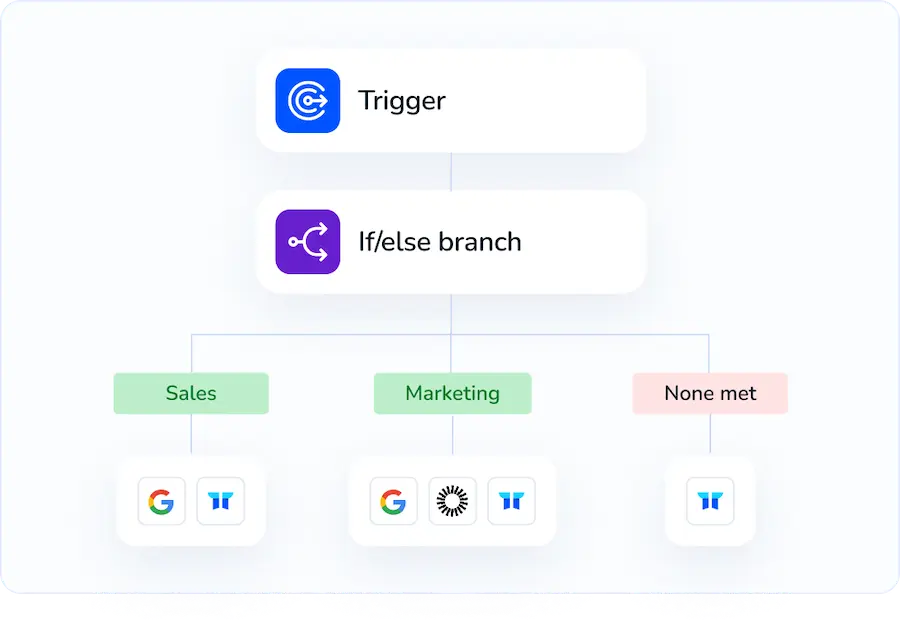
Unlike handling this manually in Google Workspace, Torii allows you to automate the task so it runs as soon as a defined trigger occurs-such as a new hire, a departing employee, or a contract renewal. This can significantly reduce time and effort when the action needs to recur often.
1. Sign up for Torii
Contact Torii, and ask for your free two-week proof-of-concept.
2. Connect your Google Workspace account to Torii
After your environment is active, connect Google Workspace to Torii. Here are the instructions for the Google Workspace integration.
3. Create a Torii workflow for Google Workspace
Within Torii, create an automated workflow to delete groups in Google Workspace. Open the Workflows tab, define a trigger, and add an action that deletes groups in Google Workspace. From that point on, whenever the trigger criteria are met, Google Workspace will be updated automatically.
Use Google Workspace’s API
Here, you’ll call the Admin SDK Directory API to remove a Google Group from your domain. You’ll authenticate, then send a DELETE request to the groups endpoint.
Get the right authorization
You need an OAuth 2.0 access token that includes this scope: https://www.googleapis.com/auth/admin.directory.group. Use either a service account with domain-wide delegation and impersonation of an admin, or a standard OAuth flow with an admin user. The token goes in the Authorization header of your requests.
- Before you start:
- Enable the Admin SDK API on your Google Cloud project.
- Make sure the caller has permission to manage groups in your Google Workspace domain.
Know the endpoint and identifiers
The API you will call is the Admin SDK Directory API, method groups.delete.
- Endpoint format:
DELETE https://admin.googleapis.com/admin/directory/v1/groups/{groupKey}
groupKeycan be:- The group’s primary email, for example
[email protected] - A group alias email
- The group’s unique ID
- The group’s primary email, for example
Delete a single group
Replace ACCESS_TOKEN and GROUP_KEY with your values.
Example curl is:
curl -X DELETE \
-H "Authorization: Bearer ACCESS_TOKEN" \
-H "Accept: application/json" \
"https://admin.googleapis.com/admin/directory/v1/groups/GROUP_KEY"
- On success, the API returns HTTP 204 No Content.
- If the group does not exist, you will get 404 Not Found.
Verify the deletion
After you delete, you can check that the group no longer exists by calling groups.get. A deleted group will return 404.
Example curl is:
curl -X GET \
-H "Authorization: BearER ACCESS_TOKEN" \
-H "Accept: application/json" \
"https://admin.googleapis.com/admin/directory/v1/groups/GROUP_KEY"
Delete many groups safely
If you need to remove several groups, list first, decide which to delete, then call DELETE per group. The listing method is groups.list.
Example curl is:
curl -X GET \
-H "Authorization: Bearer ACCESS_TOKEN" \
-H "Accept: application/json" \
"https://admin.googleapis.com/admin/directory/v1/groups?domain=acme.com&maxResults=200"
- There are two things to note:
domainlists groups in a specific domain. You can also usecustomerto list across the whole organization.- Paginate with
pageTokenuntilnextPageTokenis no longer returned.
Then iterate through the groups you plan to remove and call groups.delete for each email or id.
Handle common errors and retries
- 400 Bad Request:
- Check that
groupKeyis valid and properly encoded.
- Check that
- 403 Forbidden:
- The token is missing the required scope or the caller is not allowed to manage groups.
- 404 Not Found:
- The group is already gone or the key is wrong. Treat this as deleted if that is your goal.
- 429 or 503:
- Apply exponential backoff and retry.
Notes for production use
- Deleting a group removes the group and its memberships. It does not delete any user accounts.
- If the group is used in app access or Drive sharing, members will lose access that came through that group. Review usage before you delete.
- Audit and log:
- Record the
groupKey, request ID, response code, and timestamp for each deletion.
- Record the
Frequently Asked Questions
You have three safe options: use the Google Admin console UI, automate via Torii SMP, or call the Admin SDK Directory API (groups.delete). Review permissions and group usage, then delete and verify with groups.get or the Admin console to confirm removal.
Sign in as a super admin or an admin with the Groups privilege that allows deletion. For API calls use a service account with domain-wide delegation or an admin OAuth token. If groups are synced, delete them in the source directory first.
Before deleting, inspect Members and Settings pages, check Drive and Sites shares, calendar invites, and app access. List group members, search for shared files, and test revoking access where possible. Document dependencies and inform affected owners or teams.
Deleting a group immediately disables its email address, removes group memberships and Google Groups archives, and revokes any access granted via the group. This action is irreversible; to restore you must recreate the group and reassign members and permissions.
Use groups.list with domain or customer parameters and paginate with pageToken to gather candidates. Decide which to remove, then call groups.delete for each groupKey (email or id). Handle 400/403/404/429/503 errors, apply exponential backoff, and log each deletion.
A deleted group can reappear if synchronized from an external directory like Google Cloud Directory Sync; delete it at the source. If Delete group is missing, you likely lack permissions - ask a super admin or adjust roles. Dynamic or externally managed groups may have restrictions.