

3 Ways to Remove Users from Google Workspace Groups in 2026
 Chris Shuptrine
•
Aug 18, 2025
•
6 min read
•
Updated April 9, 2026
Chris Shuptrine
•
Aug 18, 2025
•
6 min read
•
Updated April 9, 2026
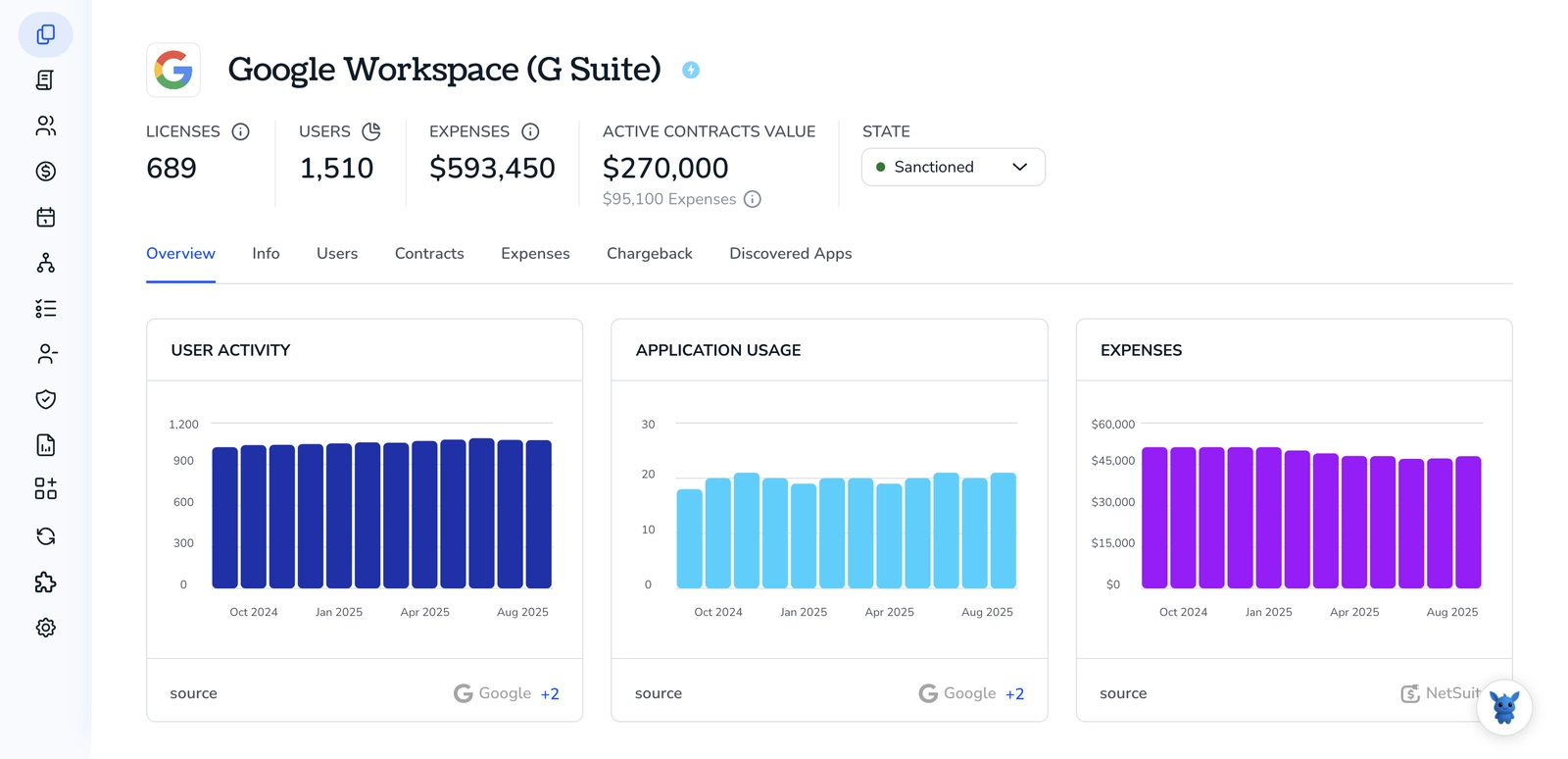
Explore three methods to remove users from Google Workspace Groups and practical tips for admins managing group membership
Ask about this article
Opens Claude in a new tab to answer, using this article as the source.
Managing membership in Google Workspace Groups can be time-consuming and tricky, especially when you need to remove users cleanly across multiple groups. This guide walks admins through three practical methods to remove users, whether you prefer the Admin console, command-line tools, or the API.
Read on for step-by-step instructions, cleanup tips, and guidance on which approach fits different situations so you avoid mistakes and keep access tidy.
Table of Contents
Use Google Workspace’s UI
Here, you’ll use the Google Workspace Admin console or the Google Groups web UI to remove a user from a group. Pick the UI that matches your role: admins usually use the Admin console; group owners/managers can use groups.google.com.
Remove a user from a group using the Admin console
- Sign in to the Admin console at admin.google.com with an admin account.
- Open Groups.
- Find and open the group you want to change. Use the search box if needed.
- Go to the Members section.
- Find the user you want to remove:
- Click the three-dot menu or the action next to their name.
- Choose Remove member (or Remove).
- Confirm the removal when prompted.
Remove a user from a group as a group owner or manager (groups.google.com)
- Sign in to groups.google.com with an account that owns or manages the group.
- Open the group.
- Click Members in the left menu.
- Find the member, then either:
- Select the checkbox next to their name and click Remove members at the top, or
- Click the three-dot menu next to the member and choose Remove member.
- Confirm the removal.
Remove multiple users at once
- In the Admin console or groups.google.com Members view:
- Select the checkboxes next to each member you want to remove.
- Click Remove members (or use the action menu) and confirm.
Troubleshooting and notes
- If you don’t see remove options, check your role. Only admins, group owners, or managers can remove members.
- Removing a user stops group email delivery and removes any group-based access the user had (for example, shared drives or group-shared resources).
- If you change your mind, add the user back to the group the same way you add members.
For step-by-step UI screenshots and any variations by admin role, refer to Google Workspace documentation titled “Add or remove members of a group” and the Admin console help on managing group members.
Use Torii
Instead of handling this inside Google Workspace, you can use Torii, a SaaS Management Platform, to remove user from groups in Google Workspace. SMPs give organizations a single place to manage SaaS subscriptions and integrations, so you can programmatically onboard/offboard people, view subscription info, and more.
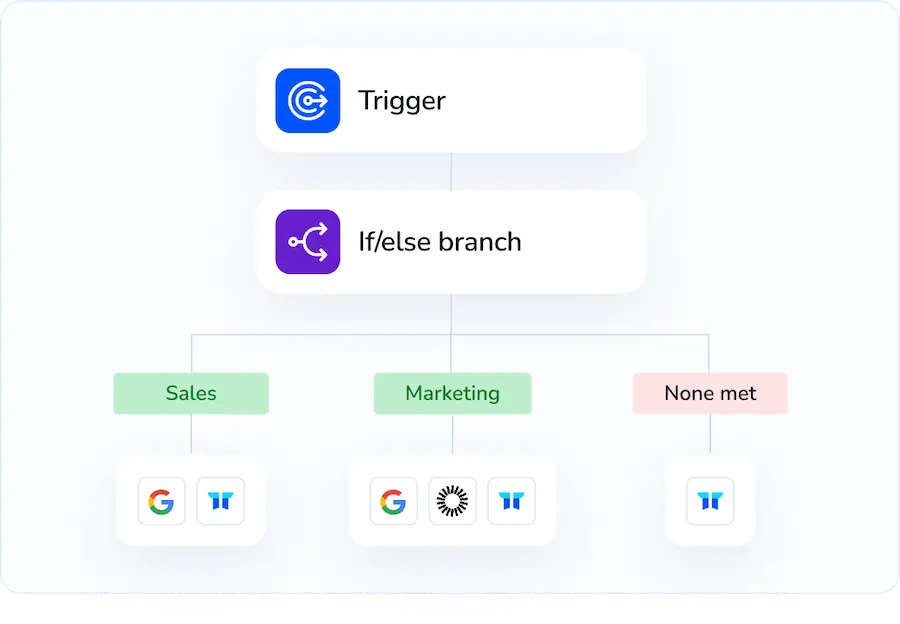
Rather than executing the removal manually in Google Workspace, Torii lets you automate the task so it runs automatically when a specified trigger occurs. Triggers might include a new hire, an employee departure, a contract renewal, or similar events - which can save considerable time if this needs to happen often.
To remove user from groups in Google Workspace straight from Torii, follow these steps:
1. Sign up for Torii
Contact Torii to request your complimentary two-week proof-of-concept.
2. Connect your Google Workspace account to Torii
Once your Torii account is active, connect Google Workspace (assuming you already have one). Here are the instructions for the Google Workspace integration.
3. Create a Torii workflow for Google Workspace
In Torii, build an automated workflow that removes user from groups in Google Workspace. Go to the Workflows tab, define the trigger you want, then add an action that removes the user from the appropriate groups in Google Workspace. After that, any time the trigger fires, Torii will make the update in Google Workspace.
Use Google Workspace’s API
Here you’ll use the Google Workspace Admin SDK (Directory API) Members: delete method to remove a member from a Google Group via API calls.
1. Confirm required API, scope, and permissions
- API: Admin SDK - Directory API, method Members: delete (HTTP DELETE on
admin.googleapis.com/admin/directory/v1/groups/{groupKey}/members/{memberKey}) - Required OAuth scope:
https://www.googleapis.com/auth/admin.directory.group.member - Caller must have admin privileges (super admin or delegated admin with group-member management rights)
2. Choose the right identifiers
- groupKey can be:
- The group’s primary email (example@yourdomain.com)
- Or the group’s unique ID
- memberKey can be:
- The member’s email
- Or the member’s unique ID
3. Obtain an access token
- Use OAuth 2.0 or a service account with domain-wide delegation that has the scope
https://www.googleapis.com/auth/admin.directory.group.member. - Ensure the token is valid and not expired before making the delete call.
Example curl is:
curl -X DELETE \
-H "Authorization: Bearer ACCESS_TOKEN" \
"https://admin.googleapis.com/admin/directory/v1/groups/group@example.com/members/member@example.com"
4. Call Members: delete with a client library (examples)
Example Node.js:
const {google} = require('googleapis');
const auth = new google.auth.GoogleAuth({
    scopes: ['https://www.googleapis.com/auth/admin.directory.group.member']
});
const service = google.admin({version: 'directory_v1', auth});
await service.members.delete({
    groupKey: 'group@example.com',
    memberKey: 'member@example.com'
});
Example Python:
from googleapiclient.discovery import build

service = build('admin', 'directory_v1', credentials=creds)
service.members().delete(
groupKey='group@example.com',
memberKey='member@example.com'
).execute()
5. Handle common responses and errors
- 204 No Content: member deleted successfully.
- 404 Not Found: group or member not found. Check identifiers.
- 403 Forbidden: missing scope or insufficient admin rights.
- 400 Bad Request: invalid parameters.
- On transient server errors, retry with exponential backoff.
6. Audit and logging
- Log the groupKey, memberKey, timestamp, and request ID for audits.
- Optionally call the Groups Audit or Admin Activity logs separately if you need longer-term tracking.
7. Bulk removals
- For many removals, loop through calls and throttle to avoid rate limits.
- Use exponential backoff on 429 or 5xx responses.
- Consider batching at your application level; the Directory API does not provide a bulk-delete endpoint for members.
Refer to the Admin SDK Directory API docs for full details on Members: delete, scopes, and error codes.
Frequently Asked Questions
You have three options: use the Google Workspace Admin console or groups.google.com UI, automate the task with Torii workflows, or call the Admin SDK Directory API Members: delete endpoint. Pick the approach that matches your role, automation needs, and technical comfort.
Yes. Sign in at admin.google.com, open Groups, choose the group, click Members, find the user, open the three-dot menu, select \"Remove member\", and confirm. Select multiple checkboxes first if you need to erase several people at once.
Open groups.google.com, enter the group, click Members, tick the box by each person or use their three-dot menu, choose \"Remove member\", then confirm. Owners or managers must be signed in with the account that holds their role.
Use a SaaS Management Platform like Torii. Connect Google Workspace, build a workflow, set a trigger such as employee departure, add the \"Remove user from groups\" action, and Torii will execute the removals automatically whenever the trigger fires.
Call HTTP DELETE on admin.googleapis.com/admin/directory/v1/groups/{groupKey}/members/{memberKey} or use the same method in a client library. Authorize with the OAuth scope https://www.googleapis.com/auth/admin.directory.group.member and ensure the caller has sufficient admin privileges.
204 means success. 404 signals an invalid group or member ID, 403 shows missing scope or admin rights, 400 flags bad parameters, and 429 or 5xx responses require retries with exponential backoff to stay within rate limits.