3 Ways to Add Users to Jira

Adding people to Jira shouldn’t be a guessing game. You need teammates in fast, with the right access, without license waste or permission sprawl. That balance varies by team size, compliance, and how admins work.
We’ll cover three approaches: direct invites, group-based onboarding with project roles, and directory provisioning via Google Workspace, Azure AD, or Okta. You’ll learn when each fits and the settings that matter, product access, groups, roles, and billing.
Table of Contents
Use Jira’s UI
Here, you’ll use the Jira Cloud UI to invite a new user and give them access to the right products and projects.
Check you have the right admin access
You need to be a site admin or have user access admin rights. In Jira, select the cog in the top right and try opening User management. If you can’t open it, ask an admin to grant access. This follows Atlassian’s Jira Cloud docs for user management.
Open User management
From Jira, select the cog icon, then User management. This opens the Atlassian admin area for your site. You can also open the admin hub directly and choose your site if you manage more than one.
Start an invite
In the left nav, go to Directory, then Users. Click Invite users. You’ll see a panel to add email addresses and choose access.
Add the person’s email
Enter one or more work email addresses. You can paste a list, separated by commas or spaces. Jira will queue each address for this invite.
- Before you send the invite, confirm:
- Product access: choose which Jira products they need, like Jira Software or Jira Service Management.
- Groups: use the suggested default groups for each product, or pick custom groups your team uses for permissions.
- Message: add a quick note if you want to explain why they’re being added.
Send the invite
Click Invite users. The user appears as Pending in the Users list until they accept the email invite. If needed, open their row to resend or revoke the invite. Atlassian’s docs note that pending status changes to Active once they sign in.
Add them to the right projects
Giving product access gives them a license. They still need project access.
- For a team-managed project:
- Open the project.
- Go to Project settings, then Access.
- Click Add people, choose their role, and add them.
- For a company-managed project:
- Open the project.
- Go to Project settings, then People.
- Click Add people, choose their role, and add them.
Verify access and fix common snags
In User management, check their status. If they’re Active but still can’t see a project, add them to that project or the correct group. If you hit a license limit, remove product access for someone who no longer needs it, or add more licenses. If your site uses single sign-on, they may need to sign in with your identity provider before the invite works.
Made a mistake? Adjust or remove access
Open the user in User management. Turn off product access they don’t need or remove them from groups. This frees a license and tightens permissions, just like Atlassian’s guidance recommends.
Use Torii
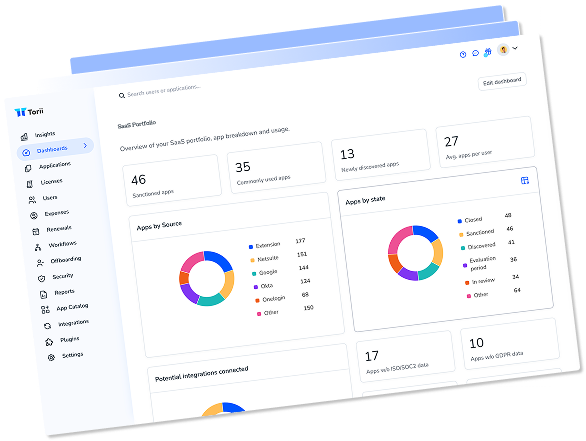
Instead of operating inside Jira directly, you can use Torii, a SaaS Management Platform, to add user in Jira. SMPs centralize control over SaaS apps and integrations, making it simple to programmatically onboard/offboard users, review subscription details, and more-all from a single place.
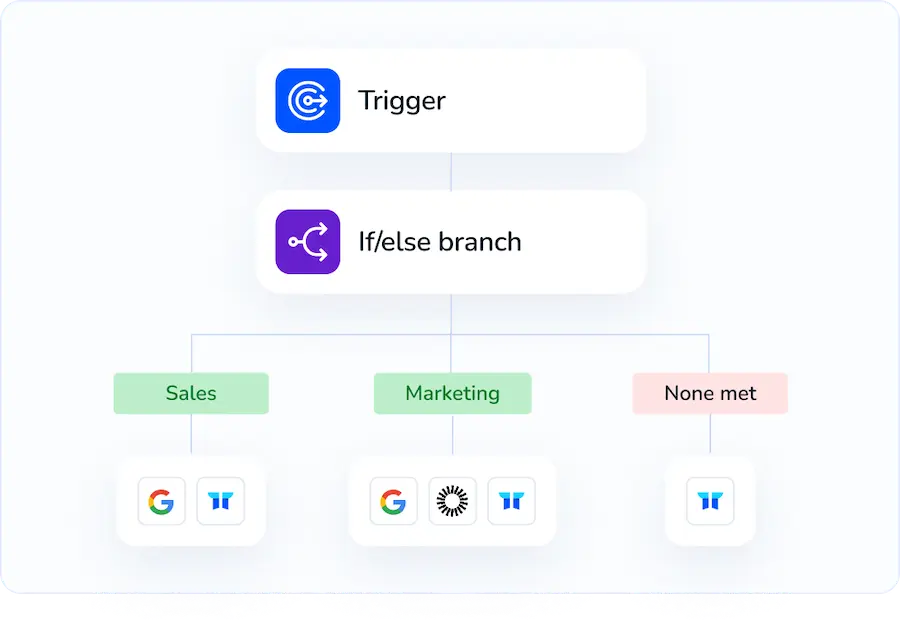
With Torii, this process can be fully automated so the action runs whenever a defined trigger occurs-such as a new hire, an employee departure, or a contract renewal. This removes repetitive manual work and saves time when the task recurs often.
To add user in Jira straight from Torii, follow these steps:
1. Sign up for Torii
Contact Torii to request a free two-week proof-of-concept.
2. Connect your Jira account to Torii
After your account is active, connect your Jira environment to Torii (assuming you already have Jira). Here are the instructions for the Jira integration.
3. Create a Torii workflow for Jira
Inside Torii, build an automated workflow to add user in Jira. Go to the Workflows tab, define a trigger, then configure an action that will add user in Jira. From then on, whenever the trigger is met, Jira will be updated automatically.
Use Jira’s API
Here, you’ll use Jira’s APIs to add a user. Pick the Cloud or Server/Data Center path based on your deployment, then follow the calls.
Jira Cloud: Create the user with Atlassian SCIM
This uses Atlassian’s SCIM provisioning API. You’ll need your directoryId and a SCIM bearer token for that directory.
- What you’ll do:
- Create the Atlassian account in your org’s directory.
- Capture the returned id. You’ll use it as the accountId in Jira.
Example curl is:
curl -X POST "https://api.atlassian.com/scim/directory/{directoryId}/Users" \
-H "Authorization: Bearer {SCIM_API_TOKEN}" \
-H "Content-Type: application/scim+json" \
-H "Accept: application/scim+json" \
-D '{
    "userName": "[email protected]",
    "name": { "givenName": "Alex", "familyName": "Rivera" },
    "emails": [{ "value": "[email protected]", "primary": true }],
    "active": true,
    "externalId": "hrms-12345"
}'
- Response tips:
- Save the “id” from the response. That is the Atlassian account identifier you’ll use with Jira Cloud’s REST API.
- If you need to look up later, you can GET the user via SCIM with a filter on userName.
Jira Cloud: Add the user to a Jira product group
Grant Jira access by adding the user to a group that has product access (for example, jira-software-users). This uses the Jira Cloud Platform REST API v3.
Example curl is:
curl -X POST "https://your-domain.atlassian.net/rest/api/3/group/user?groupname=jira-software-users" \
-H "Authorization: Basic {base64(email:api_token)}" \
-H "Content-Type: application/json" \
-d '{ "accountId": "ATLASSIAN_ACCOUNT_ID_FROM_SCIM" }'
- Notes:
- Use accountId, not email or username.
- Group names vary by site. Add the user to the group tied to your Jira product access.
- To verify the add, GET the group’s members with the same API or query the user in Jira by accountId.
Jira Server/Data Center: Create the user via REST
This uses the Jira Server/Data Center REST API v2. You’ll need admin permissions.
Example curl is:
curl -X POST "https://your-jira.example.com/rest/api/2/user" \
-H "Authorization: Basic {base64(admin_username:admin_password)}" \
-H "Content-Type: application/json" \
-D '{
    "name": "alex",
    "password": "StrongPwd123.",
    "emailAddress": "[email protected]",
    "displayName": "Alex Rivera",
    "notification": true,
    "applicationKeys": ["jira-software"]
}'
- Notes:
- ApplicationKeys assigns the user to the application (for example, jira-software or jira-core) if licensed.
- If your site manages access by groups, still add the user to the right groups in the next step.
Jira Server/Data Center: Add the user to a Jira group
Add the user to a group that grants project/product access.
Example curl is:
curl -X POST "https://your-jira.example.com/rest/api/2/group/user?groupname=jira-software-users" \
-H "Authorization: Basic {base64(admin_username:admin_password)}" \
-H "Content-Type: application/json" \
-d '{ "name": "alex" }'
- Quick checks:
- If the response is 201 or 200, the user was added.
- To confirm, GET the group members using the same API family or try logging an issue with that user account in a test project.
Common pitfalls to avoid
- Using email for Cloud user operations:
- In Cloud, many user APIs require accountId, not email.
- Missing product access:
- Creating a Cloud user with SCIM doesn’t grant Jira access by itself. Add them to the right Jira groups.
- Wrong auth type:
- Cloud: use Basic auth with an API token for Jira REST, and a SCIM bearer token for provisioning.
- Server/DC: Basic with an admin user or a session cookie.
Frequently Asked Questions
You have three options: invite via Jira Cloud UI, provision using Atlassian SCIM or Jira Server APIs, or automate onboarding with Torii. For UI invites, assign product access and add to projects; for API/SCIM, create account and add to product groups.
You must be a site admin or have user access admin rights to open User management. Verify by clicking the cog and attempting to open User management; if blocked, ask an existing site admin to grant the role.
After granting product access, add users to projects: for team-managed projects, go Project settings > Access > Add people and pick a role; for company-managed, use Project settings > People > Add people and assign a role.
SCIM provisions Atlassian accounts in your organization directory and returns an account id used with Jira APIs. Jira REST APIs and Server/DC REST create users, assign groups or applicationKeys. Use SCIM for centralized directory provisioning.
Use Torii for automated, policy-driven onboarding/offboarding, subscription visibility, and cross-SaaS workflows. It’s ideal when you need triggers (new hire, departure), centralized control, or to eliminate repetitive manual invites across large teams.
Watch for using email instead of accountId in Cloud APIs, forgetting to add product access or group membership, hitting license limits, and SSO requirements. Verify product access, groups, and that the user signs in via your identity provider.