

3 Ways to Deactivate a User in LastPass in 2026
 Chris Shuptrine
•
Apr 8, 2025
•
5 min read
•
Updated April 19, 2026
Chris Shuptrine
•
Apr 8, 2025
•
5 min read
•
Updated April 19, 2026
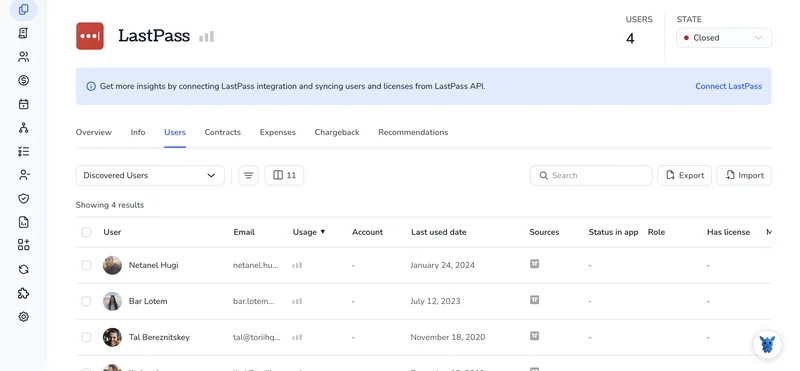
Discover three methods to deactivate a user in LastPass, preserve password vault integrity, optimize admin control and compliance
Ask about this article
Opens Claude in a new tab to answer, using this article as the source.
When someone leaves the team, their access to shared credentials has to be sealed fast. In LastPass, that job falls on admins who need to lock accounts without breaking the vault structure everyone relies on.
Below, you’ll see three straightforward ways to deactivate a user while keeping passwords safe, audit trails intact, and compliance boxes checked.
Table of Contents
Table of Contents
Use Lastpass’s UI
Here, you’ll use the LastPass Admin Console to deactivate a user account.
1. Open the Admin Console
- Log in to your LastPass vault.
- In the left sidebar, click Admin Console. The console opens in another tab.
2. Go to the Users page
- In the console’s left navigation, choose Users.
- A table listing every user in your business account appears.
3. Find the user you need to deactivate
- Enter the person’s name or email in the search bar, or scroll through the list.
- When you locate the right record, tick the box at the far left of that row.
4. Disable the account
- Above the table, click More actions (the three-dot icon).
- Select Disable user from the drop-down.
5. Confirm
- A pop-up asks if you’re sure. Click Disable.
- LastPass locks the account right away.
6. Verify the status
Back in the Users table, look at the Status column. It should now read Disabled next to that user’s name.
7. Re-enable later (optional)
- Select the disabled user’s checkbox again.
- Choose More actions > Enable user.
- Confirm, and their status returns to Active.
A disabled account keeps all stored passwords and shared folders intact; the user just can’t sign in until you turn it back on.
Use Torii
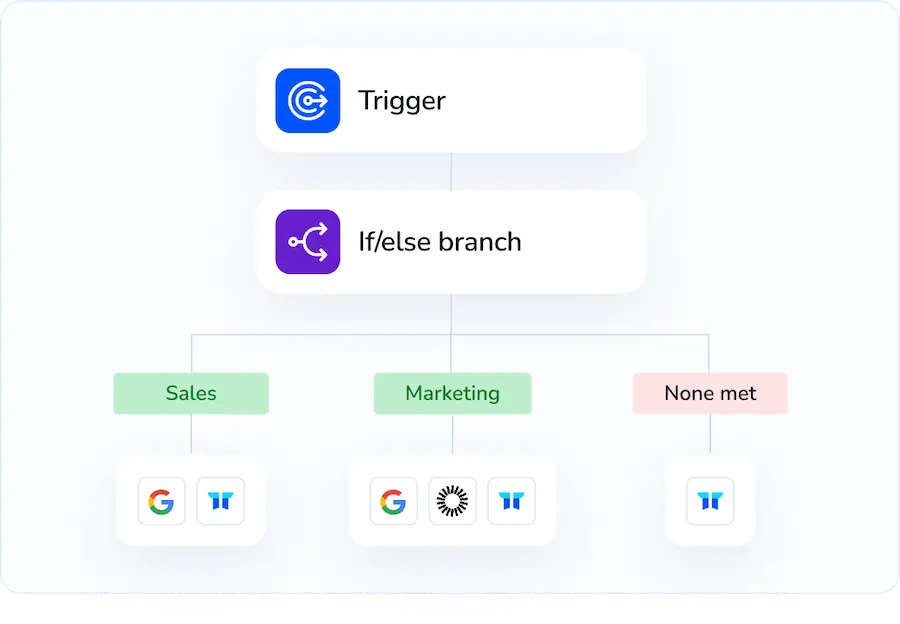
Skip the manual toggling inside LastPass and route the job through Torii, a platform that manages SaaS apps in one place. With Torii, IT teams can automate joiners and leavers, monitor license usage, and handle dozens of other routine tasks.
Moving the workflow into Torii instantly turns it into an event-driven process. When a trigger fires like a new hire or renewal date, Torii updates LastPass without any human clicks. That simple change removes repetition and frees up time.
To turn off a LastPass user through Torii, do the following:
1. Sign up for Torii
Reach out to Torii Sales and ask for a complimentary two-week proof of concept.
2. Connect your Lastpass account to Torii
After your tenant is live, link the existing LastPass instance to Torii. Follow these integration instructions.
3. Create a Torii workflow for LastPass
Open the Workflows tab, pick a trigger, and add the action that deactivates a LastPass user. From then on, whenever the trigger condition is satisfied, Torii updates LastPass automatically.
Use Lastpass’s API
Here’s how to shut down a LastPass user with nothing but a single HTTP POST. Forget the console clicks.
Step 1. Grab your API creds
- You need two values:
cid(company ID) andprovhash(provisioning hash). - Have them ready before you move on.
Step 2. Build the request body
{
    "cid": 123456,
    "provhash": "yourProvHashHere",
    "cmd": "disableuser",
    "data": {
        "username": "user@example.com"
    }
}
Change the numbers, hash, and email to match your setup.
Step 3. Send the POST call
curl -X POST https://lastpass.com/enterpriseapi.php \
-H "Content-Type: application/json" \
-D @disable_user.json
Replace @disable_user.json with the file or inline JSON you built in Step 2.
Step 4. Read the response
- A successful call returns
{"status":"OK"}. - Any other status means the user was not disabled. The response text explains why.
Step 5. Confirm if needed
Run a follow-up getuser or check your logs through the same API. A disabled account shows "disabled":true in its payload.
Torii for SaaS Management
Looking to tighten up the way you manage SaaS across the company? Reach out today, and you’ll see how Torii’s SaaS Management Platform centralizes control while slashing waste:
- Uncover shadow IT: Use AI that continually scans your environment and flags unapproved apps as soon as they appear.
- Reduce spend: Cut unused licenses and overlapping tools so the budget stays healthy.
- Automate onboarding/offboarding: Launch no-touch workflows that speed employee transitions and minimize mistakes.
- Stay ahead of renewals: Receive timely alerts so every contract deadline is covered.
Torii is the first unified SaaS Management Platform, delivering a single source of truth for Finance, IT, and Security teams alike. Learn more at Torii.
Frequently Asked Questions
You can disable a user through the LastPass Admin Console, an automated Torii workflow, or a single Enterprise API POST call. Each method locks the account immediately while preserving vault data and audit trails.
Disabling a user simply blocks sign-in; all personal and shared passwords, folders, and related audit logs stay exactly as they were. Nothing is removed, so other team members keep seamless access to shared credentials.
Yes. Select the disabled user in the Admin Console, choose "More actions", click "Enable user", and confirm. The status flips back to Active and the person can sign in again with their previous vault intact.
Torii turns offboarding into an event-driven workflow. Once you connect LastPass and set a trigger—like termination in an HR system—Torii automatically disables the license, updates audit logs, and frees IT from repetitive clicks, boosting compliance and efficiency.
The Enterprise API call needs three core fields: \"cid\" for your company ID, \"provhash\" for the provisioning hash, and a command of \"disableuser\" with a nested \"username\" of the person to deactivate. Send them in JSON via HTTPS POST.
Once you click Disable user or fire the API, LastPass locks the account instantly. The status column switches to Disabled right away, ensuring the departing employee loses vault access before they can log in again.